
If you decided to use CloneNer to duplicate your deals in HubSpot but don’t know where to start, you’re in the right place. This setup guide provides clear, step-by-step instructions to help you install and use CloneNer to simplify deal duplication in HubSpot and streamline your workflows.
What Is the CloneNer App?
CloneNer is a tool designed to clone records in HubSpot, including deals, tickets, contacts, companies, line items, notes, tasks, quotas, and custom objects. It allows users to copy records together with their properties and associations, maintaining data consistency.
CloneNer supports both manual duplication (from the record sidebar) and automated duplication via auto-rules and HubSpot workflows. Once installed, it works immediately, with optional automation settings available for advanced use cases.
CloneNer - Clone & Duplicate is now a certified app in the HubSpot App Marketplace! Check it Out!

CloneNer allows users to:
- Quickly duplicate deals into another pipeline or stage without manual re-entry.
- Automatically create a new deal when a specific pipeline stage condition is met.
- Preserve associations (contacts, companies, line items, notes, tasks) during duplication.
- Duplicate non-deal records such as contacts, companies, and tickets in just a few clicks.
- Maintain accurate data relationships and reduce manual errors through automation rules.
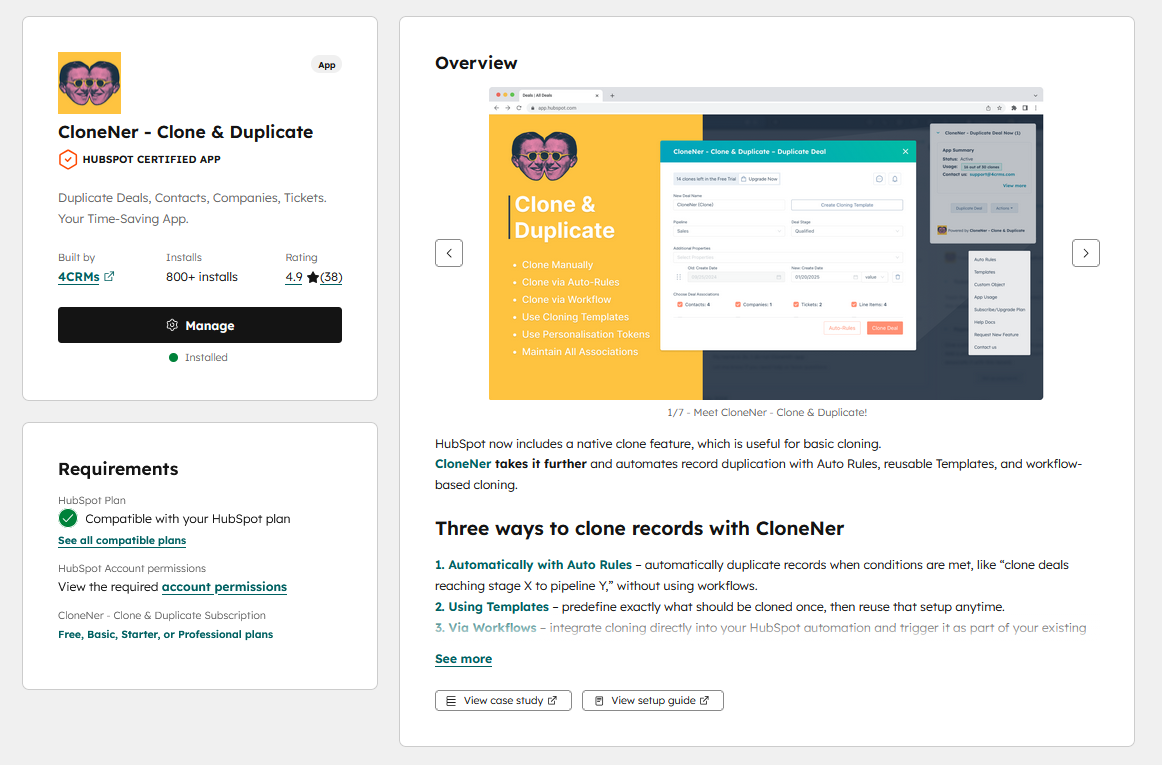
How Do I Install CloneNer? [Step-By-Step Guide]
Follow these steps to install CloneNer for your HubSpot account:
1. Log in to your HubSpot account

3. Search for "CloneNer" and select it from the list
4. Click on "Install" and follow the prompts to complete the installation
5. Select your HubSpot account (portal)
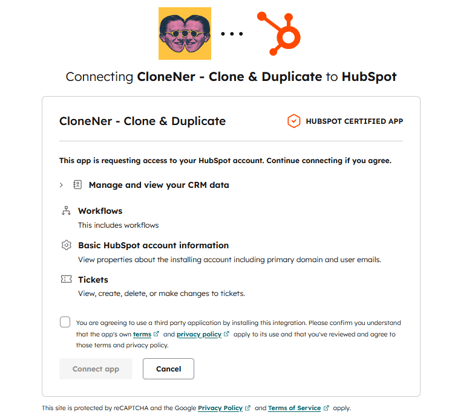
6. Click "Choose Account," then review the requested scopes on this screen.
7. Click "Connect app."
How to Configure the CloneNer App?
Once installed, that's it; you can use it. There are no extra required configurations for CloneNer to start working with it. However, you can add extra automation rules and features to adapt the app to your specific tasks - we will talk about it later in this guide.
Where Do I Find CloneNer in My HubSpot?
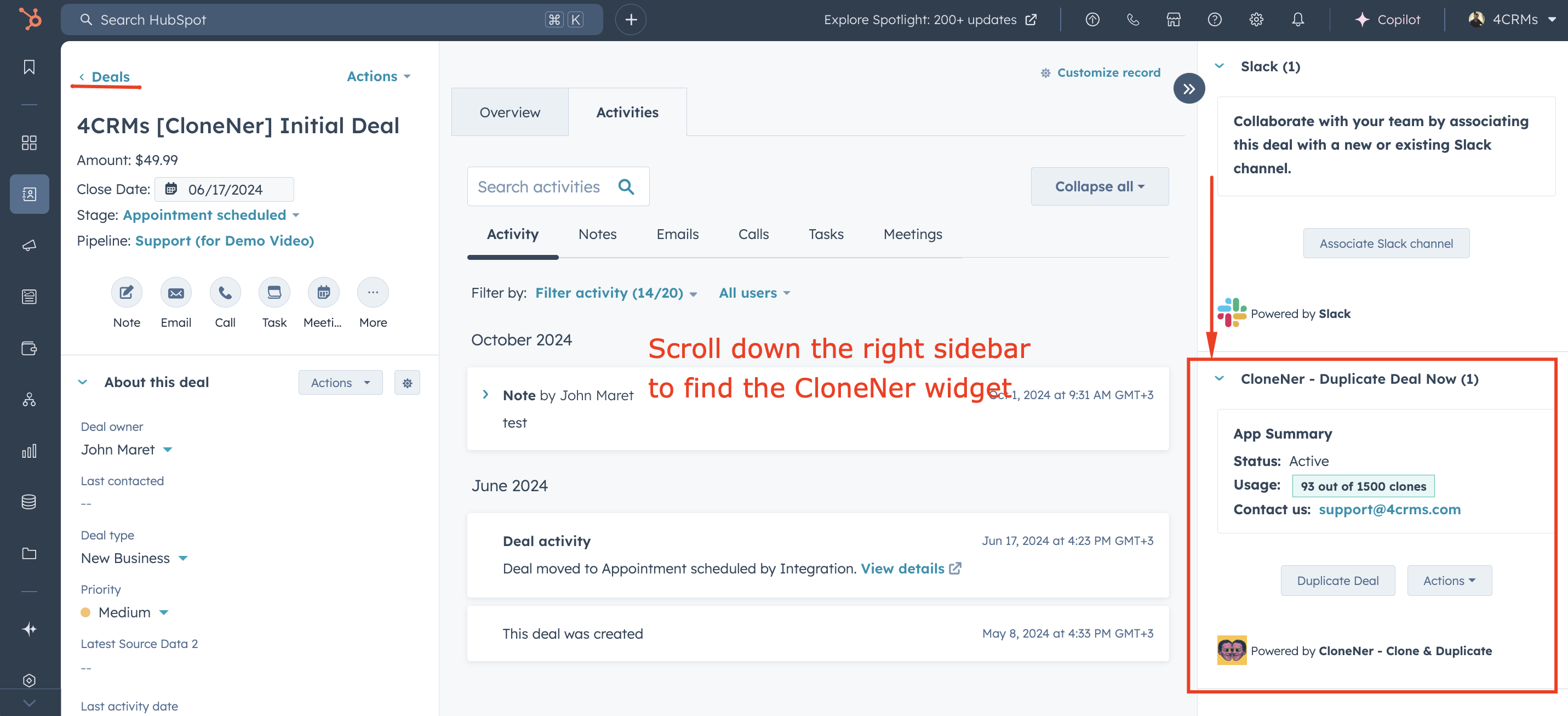
1. After the installation, navigate to CRM - Deals, and choose the deal you want to clone.
2. In the right-hand sidebar, you may need to scroll to the very end, as HubSpot typically places new app widgets towards the bottom of the sidebar by default.
3. You will then see the widget “CloneNer - Clone & Duplicate,” where you will be able to manually clone the deals.
If preferred, you can rearrange the sidebar elements to display the 'CloneNer' card higher than the drag-and-drop option in the list (per object type, per HubSpot user).
Where to Find CloneNer Usage Details?
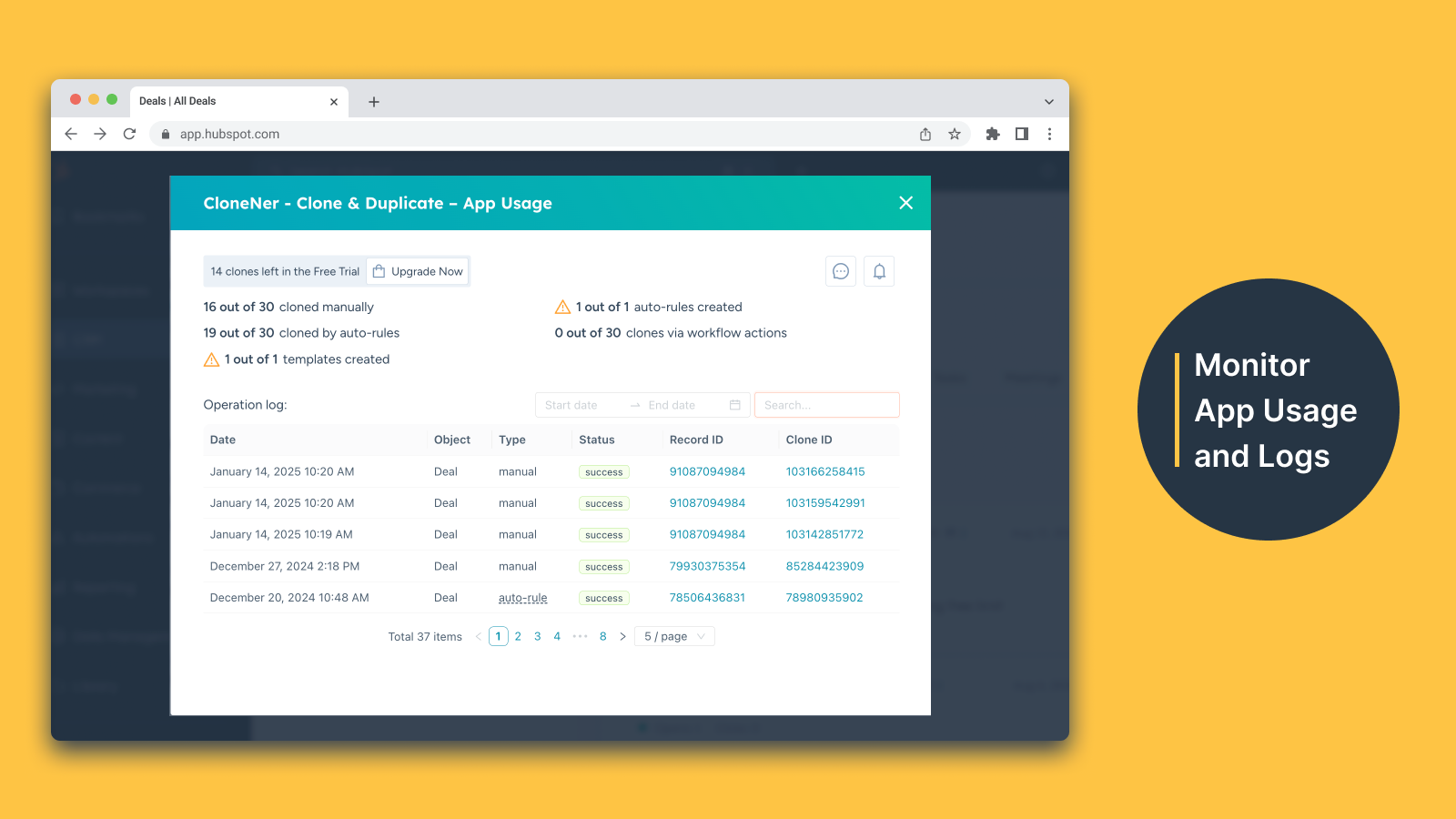
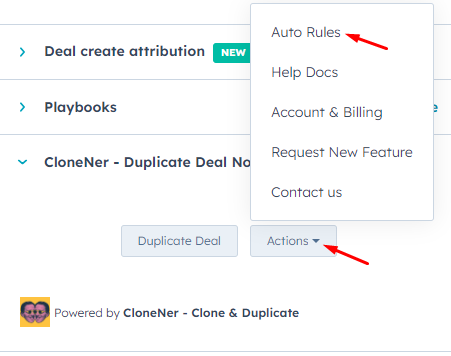
You can find the information about how many clones were made in the "Account & Billing" section, accessible from the action dropdown menu in the right card section.
In CloneNer, you can always monitor how the app is being used, including the number of clones made and remaining, along with operation logs.
How to Use the CloneNer App in HubSpot? [Guide]
As the CloneNer app enables working with contacts, companies, deals, and tickets, here are two use cases:
- The first involves duplicating a deal, which is the most common scenario.
- The second outlines general steps for supported non-deal records, including contacts, companies, and tickets
Further, we describe all the use cases of CloneNer in along with a detailed step-by-step guide.
How to Use the CloneNer App for Deal Duplication?
1. Navigate to your HubSpot account and select the deal you wish to clone.
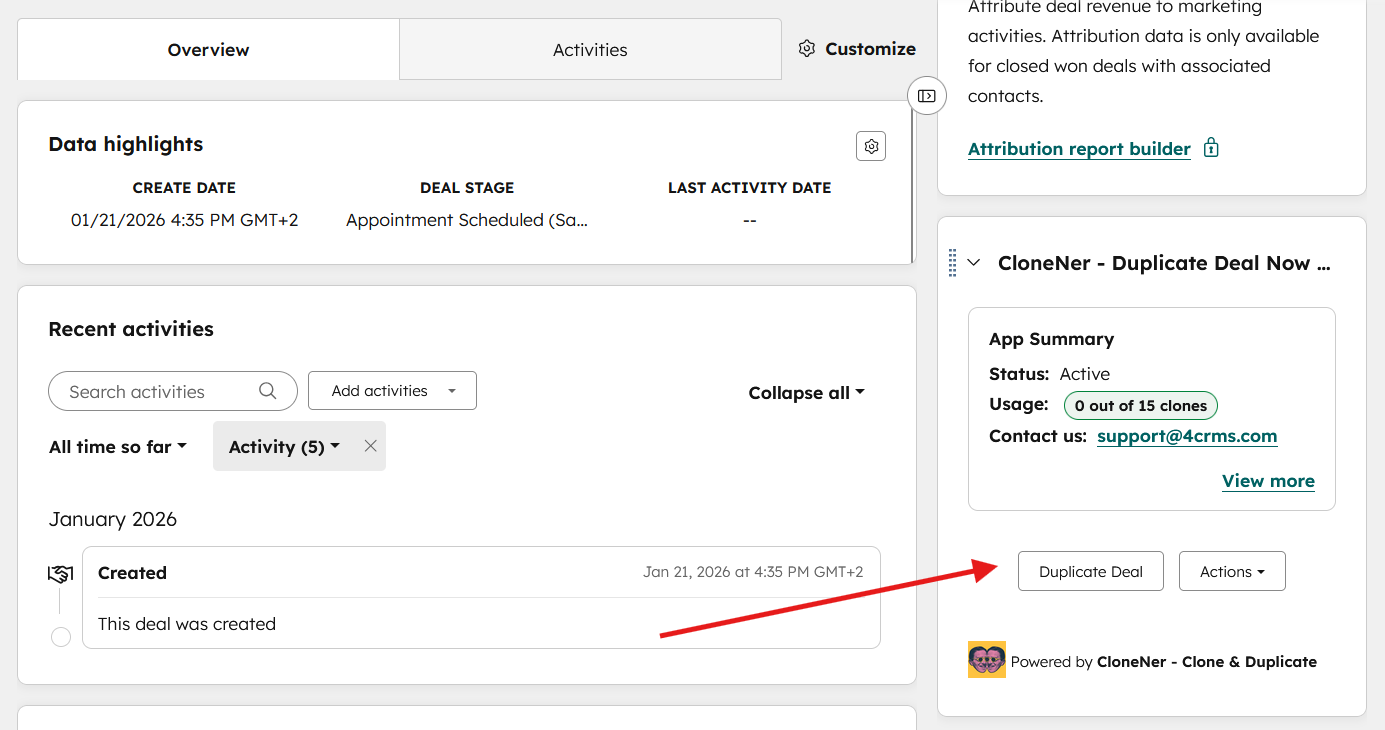
2. Locate the CloneNer widget in the right sidebar and click on "Duplicate Deal". This action will prompt a pop-up window to appear, showing your CloneNer workspace.
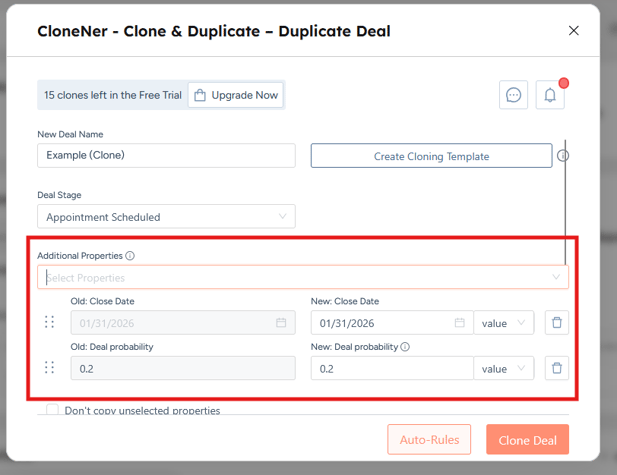
3. Choose a New Deal Name, select the Pipeline and Deal Stage (if applicable).
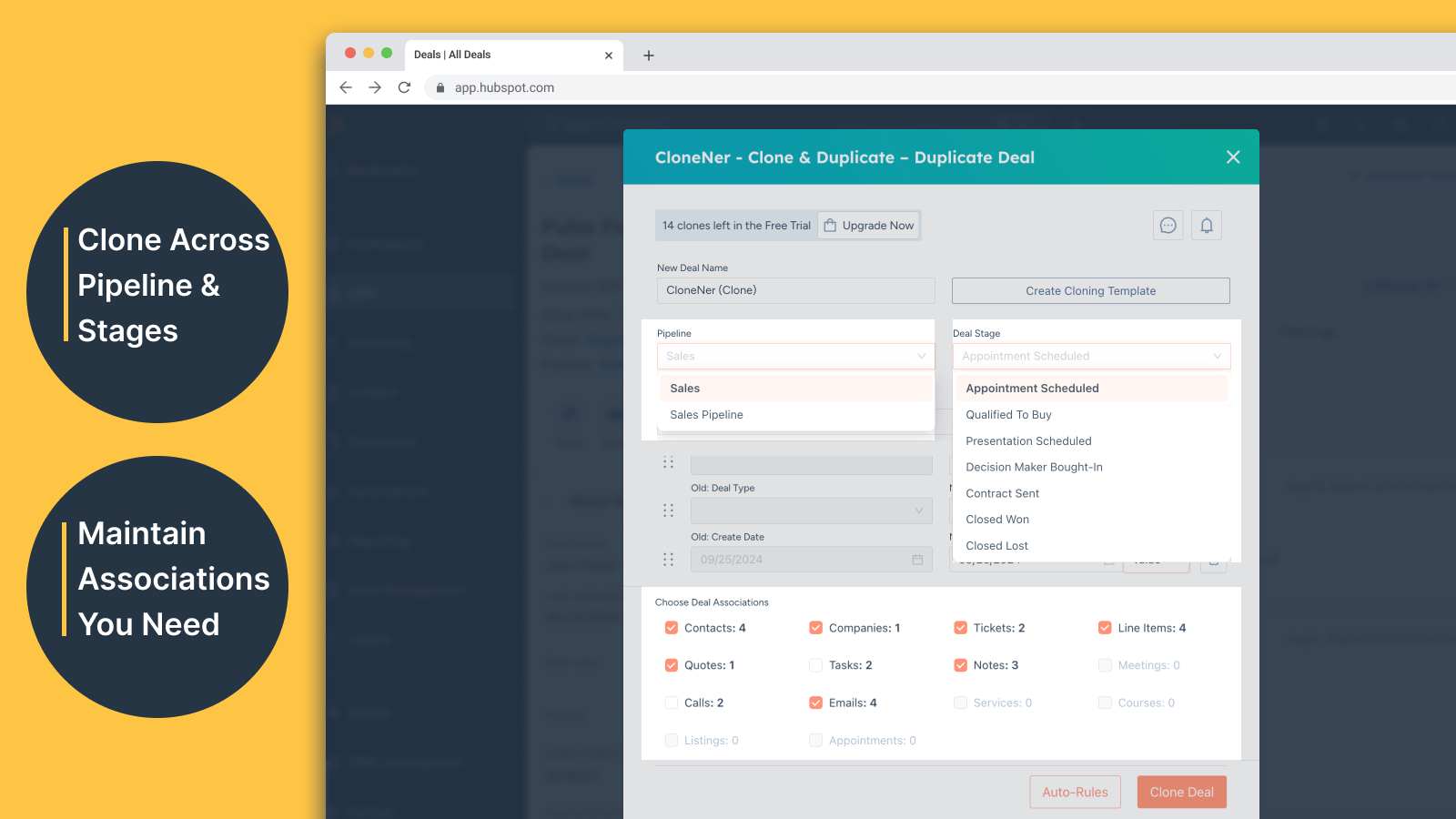
4. In the 'Additional Properties' section, you can optionally add some properties via the UI to streamline the cloning process within the CloneNer.
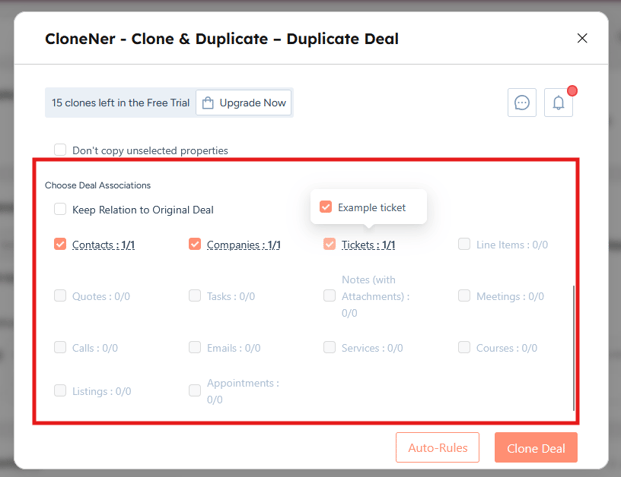
5. Also, select associations you wish to preserve in the new deal in the section "Choose Deal Associations."
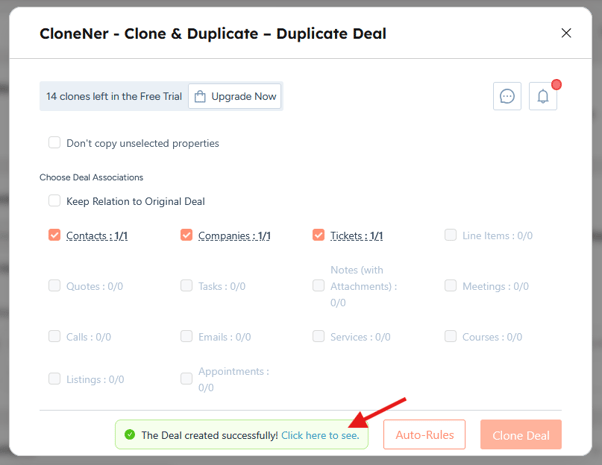
6. Once the above steps are completed, click the "Clone Deal" button. Right after that, you'll see the message "The deal created successfully! Click here to see".
Note: "Click here to see" navigates to the new deal you've just created.
How to Use the CloneNer App for Non-Deal Records (Contacts, Companies, Tickets)?
1. Navigate to your HubSpot account and select the object (contact, ticket, or company) you wish to clone.
2. In the right sidebar, find the CloneNer card and click on "Duplicate" (contact, ticket, or company). This action will prompt a pop-up to appear, unveiling your CloneNer workspace.
3. Specify the new name for the record (contact, ticket, or company) you want to clone, and manage preferences, including associations you wish to preserve in the record.
4. Once the above steps are completed, click the "Clone" button. All done!
How to Use Auto-Rules in CloneNer to Clone HubSpot Deals Automatically?
You can establish cloning automation logic, similar to the "If This, Then That" rules, in your HubSpot.
Here’s the step-by-step guide on how to do it:
1. Find the CloneNer widget in your HubSpot. Click Auto-Rules - Create a New Auto-Rule. This will allow you to create a fresh automation rule within your HubSpot account. This rule will define the conditions that trigger deal duplication.
2. Define Source Deal Conditions: Specify the pipeline and stage conditions that apply to the source deal, the one you want to duplicate.
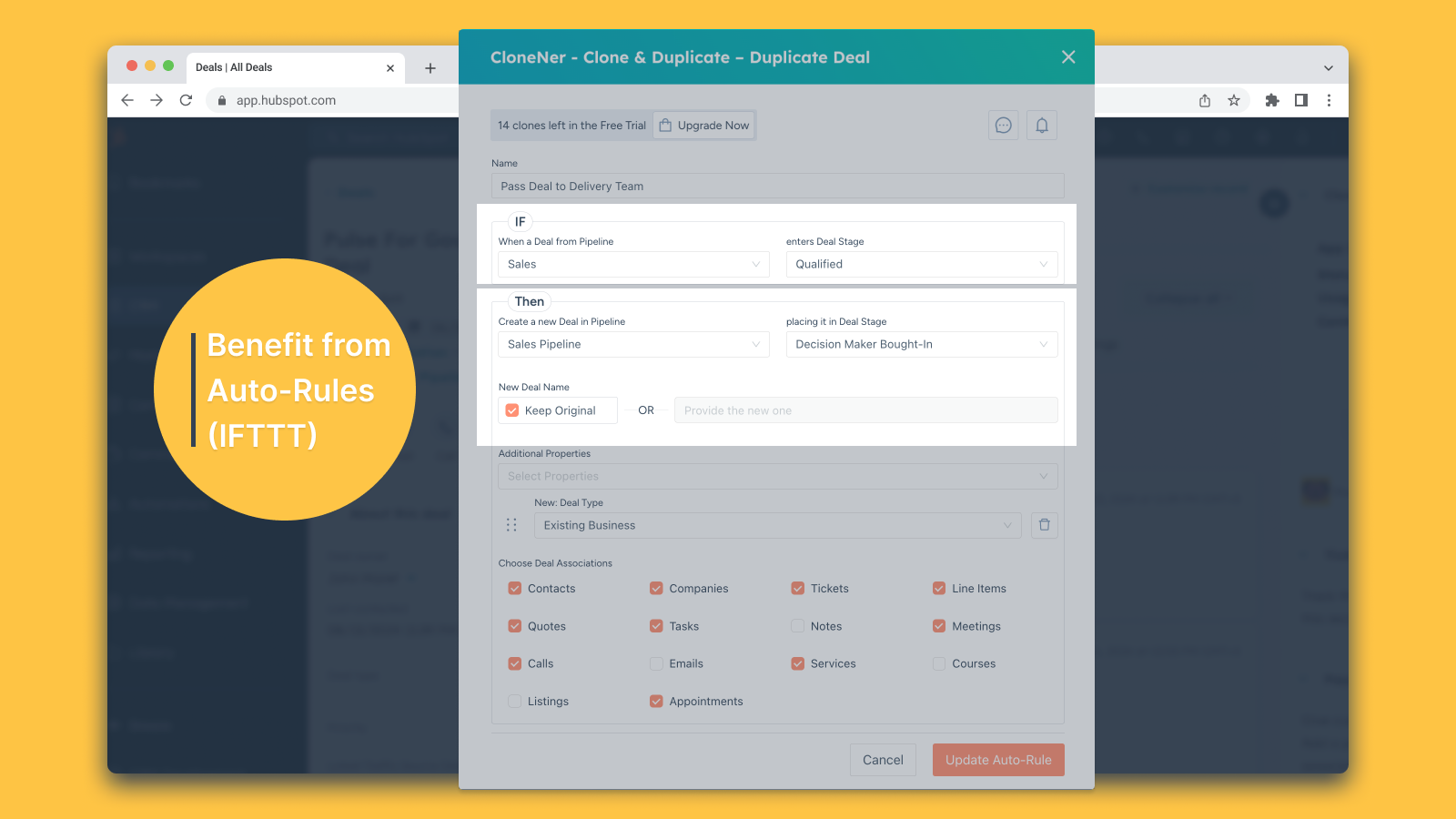
3. Specify Duplicate Deal Conditions: Now, select the pipeline and stage conditions for the duplicate deal, where the duplicated deal will be placed.
4. Press the "Add Auto-Rule" button.
5. Activate Upon Condition Fulfillment: Once the specified conditions are met, the deal duplication will trigger automatically. This ensures that the deal duplicates precisely where and when you want it in your CRM.
By following these simple steps, you'll have your deal duplication process up and running smoothly. It will intelligently automate the process to align with your unique workflow requirements.
How to Use the CloneNer App in HubSpot Workflows?
1. Go to HubSpot workflows and set up a trigger.
2. Navigate to the Integrated Apps section, find the CloneNer widget, and add it to the workflow by selecting "Duplicate Deal."
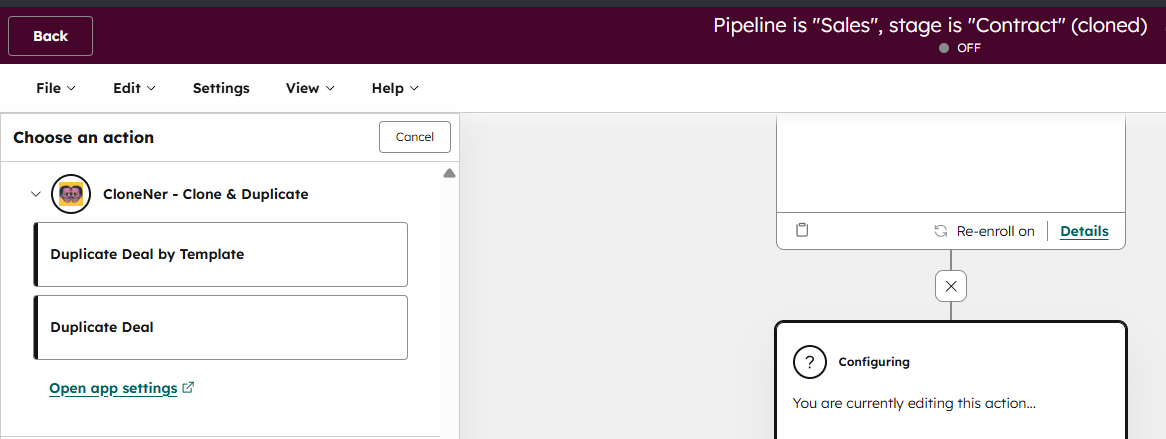
3. Customize the cloning settings for the object (Deal, Ticket, etc.) in the fields below and press "Save."
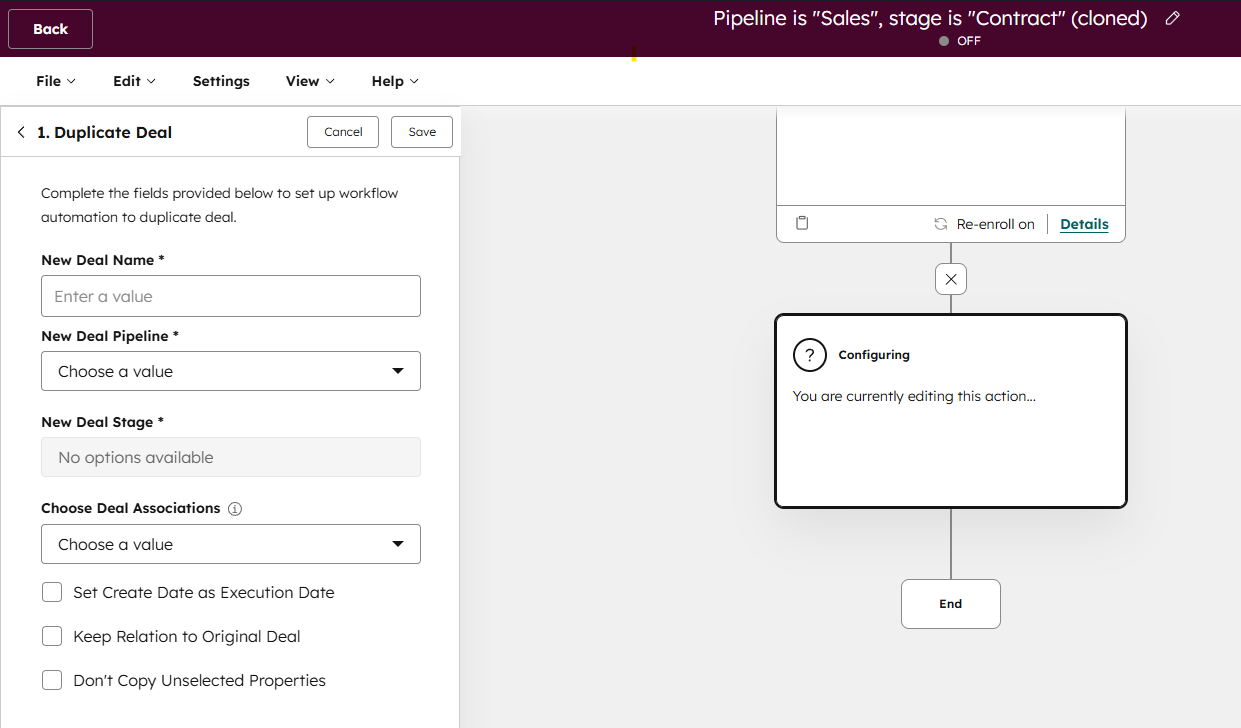
For more details, explore a detailed guide with illustrations on how to use the CloneNer app in HubSpot workflows.
How to Uninstall the App (if necessary)
To remove CloneNer from your HubSpot account, please refer to the guidance provided in the HubSpot Knowledge Base article.
1. In your HubSpot account, click the Marketplace icon in the main navigation bar. Under Manage, select Connected apps.
2. Click Actions on the app you want to disconnect, then click Uninstall.
3. In the dialog box, type “Uninstall” in the text field and click Uninstall.
Please be aware that any data previously optimized or managed by CloneNer could be impacted. It's important to export any vital data before proceeding with the disconnection or uninstallation process. Without CloneNer, your data management may become less efficient, necessitating more manual effort to maintain data accuracy.
Before disconnecting and uninstalling, it's essential to assess your specific requirements and have a data backup strategy in place to minimize disruptions to your operations.
Additionally, ensure that you consult the most current documentation and support resources provided by CloneNer for the most accurate and up-to-date instructions.
Conclusion
By following the steps outlined in this guide, you can leverage the power of automated deal duplication, custom object management, and streamlined workflows via the CloneNer app. Whether you’re looking to save time, reduce manual errors, or ensure consistency across your data, CloneNer provides a robust solution. Once configured, your team will be able to focus on more strategic tasks, knowing that the complexities of deal duplication are handled seamlessly by CloneNer.
So, what are you waiting for? Start optimizing your sales process today with this powerful tool!