Dynamic Line Item Pricing in HubSpot With Deal and Company Tokens
Need every deal to carry the price your team actually agreed with the customer? Tired of copying a fee from a deal property into a line item by hand, or looking up a customer's tier before you build a quote?
A fixed price in a workflow action works when every customer pays the same. When prices vary, it doesn't: a service fee is agreed in discovery, a customer has their own price tier, or a renewal starts from what the customer paid last time. If that number is already stored in HubSpot, on the deal or on the company, LineNer can use it.
This deep-dive shows you how to use LineNer tokens to set line item prices from deal and company properties when a workflow runs. You'll see what each token type needs, how to set one up step by step, and three use cases: pre-approved service quotes, tiered or regional pricing, and renewals.
What is dynamic line item pricing in HubSpot?
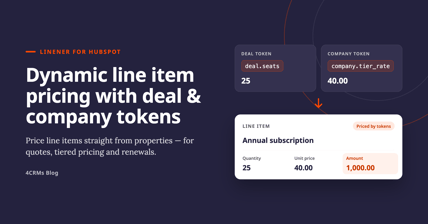
Dynamic line item pricing means the price on a line item comes from data in your CRM instead of a value typed into the workflow. With LineNer, you put a token in the Unit Price field of a line item action. When the workflow runs, LineNer reads the current value of that property and creates the line item with that exact price.
So one workflow can produce a different price on every deal, based on what's stored on that deal or its company. You keep the price in the property, and each workflow run uses its current value.
LineNer works on deals only, and its workflow actions need HubSpot Professional or Enterprise (Marketing, Sales or Service Hub with workflow access).
Deal tokens or company tokens: which one do you need?
LineNer supports two token types. The difference is where the price lives.
| Token type | Pulls the value from | Example properties | Extra requirement |
|---|---|---|---|
| Deal-level token | A custom property on the deal | Agreed Service Fee, Total Project Cost | None beyond the property type |
| Company-level token | A property on the company associated with the deal | Tier Price, Last Contract Value | The deal must be associated with a company before the workflow action runs |
A simple rule: if the price is specific to this one deal, store it on the deal. If the price belongs to the customer and should follow them from deal to deal, store it on the company.
What does a property need before you can use it as a token?
Two things, plus one practical tip.
- The property must be a Number or Currency property. In HubSpot, currency is a format of the Number field type: it formats the number using your account's default currency settings. So create a Number property and pick the Currency format if you want the value shown as money. HubSpot explains the field types in Property field types in HubSpot.
- For company-level tokens, the deal must be associated with a company before the workflow runs the LineNer action.
Tip: you'll need the property's internal name when you set up the token. HubSpot doesn't let you edit a property's internal name after you create it, so name new properties carefully. Creating properties requires Edit property settings permissions in HubSpot.
How do you set a line item price from a deal or company property?
Put a token in the Unit Price field of a LineNer action, template or bundle. Here's the full setup.
- Create or choose the property. In HubSpot, go to Settings → Properties, select deal or company properties, and create a Number property (Currency format if you like), or use one you already have.
- Find its internal name. Look up the property's internal name in your HubSpot property settings. You'll use it in the token.
- Create a deal-based workflow. Set the enrollment trigger so deals enroll only when the price is there, for example when the deal property has a value. HubSpot lets you enroll records based on the property values of associated records, so for a company token you can filter on the associated company's property.
- Add a LineNer action. Choose Add Line Item under Integrated Apps. Find the product by SKU or name and set the quantity and currency.
- Enter the token in Unit Price. Tokens start with
{{. Enter the token for your deal or company property instead of a fixed number. - Save and test. Turn the workflow on, enroll a test deal, and check that the new line item shows the property's value as its unit price.
Prices and quantities can use decimals (for example 4.5234) on every LineNer plan.
Where else you can use tokens
- Templates: the Add Line Items template type supports tokens in the price, so you can save a priced setup once and run it from any workflow with the Manage Line Items by Templates action.
- Bundles: each line item's Unit Price in a bundle can be a token. The same bundle then produces different prices on different deals.
- Update Line Items: for any field you change, Set value accepts a static value or a token. That's how you reprice line items that are already on a deal.
Use case 1: Pre-approved service quotes with a deal token
Your sales rep agrees a service fee during discovery and records it in a deal property, say Agreed Service Fee. When the deal moves to the stage where you prepare the quote, the line item should appear with that fee, without anyone retyping it.
- Create a deal property Agreed Service Fee (Number, Currency format).
- Build a deal-based workflow that enrolls deals when they reach your quoting stage and the fee has a value.
- Add the Add Line Item action, pick your service product, and enter the Agreed Service Fee token as the Unit Price.
For project work, the same pattern works with a property like Total Project Cost.
Mikkel Sørensen, Salgschef at Boligflow, describes this kind of setup on the LineNer page: "When we fill the properties in our deal, it automatically adds lines".
Use case 2: Tiered or regional pricing with a company token
If customers in different tiers or regions pay different prices for the same product, store each customer's price on the company record, for example in a company property Tier Price. Each deal for that customer then gets that price when the workflow runs.
- Create a company property Tier Price (Number, Currency format) and fill it in for your customers.
- Make sure each deal is associated with its company before the workflow reaches the LineNer action.
- In your workflow, add Add Line Item or Add Bundle, and use the Tier Price token in Unit Price.
Bundles fit this well. A bundle always adds all of its line items, with no branching inside it, but each item's price can come from a token. One bundle can serve every tier.
What if different regions need different products, not only different prices? Use templates with conditions. Conditions check deal properties, not company properties, and they're checked against the deal when the action runs. All conditions in a template must pass (AND logic); if any fails, the action is skipped, the workflow records a conditionsNotMet outcome and moves on. So keep a deal property such as region on the deal, and create one template per region with a condition on it. Templates with more than one condition need LineNer's Professional plan or above (see 4CRMs pricing).
Use case 3: Renewal pricing from the last contract value
If your renewals start from what the customer paid last time, keep that number on the company, in a property like Last Contract Value, and let the renewal deal read it.
- Create a company property Last Contract Value (Number, Currency format) and keep it up to date.
- Make sure the renewal deal is associated with the customer's company before the LineNer action runs.
- Choose how the line items get onto the renewal deal:
- Add fresh line items: use Add Line Item or Add Bundle with the Last Contract Value token in Unit Price. On Add Bundle, you can enable Delete existing line items before inserting if the renewal deal should only hold the bundle.
- Reprice line items already on the deal: use Update Line Items, target the product, set Unit Price to the token with Set value, and tick Update Deal Amount so the deal total reflects the new price.
If you create renewal deals by cloning the original deal in a workflow, CloneNer lets you choose which associations to copy, including companies. See Clone HubSpot Records with All Their Associations Through Workflows.
Checklist before you turn the workflow on
- Property type: Number or Currency. Text properties can't be used as price tokens.
- Company association: in place before the LineNer action runs, for every company token.
- Enrollment trigger: deals enroll only when the property you read has a value.
- Deal amount: when you update prices on existing line items, tick Update Deal Amount. Leave it unticked when you only change descriptive fields like the name.
- Workflow runs: each time a LineNer action runs (add, update or remove), it counts as one workflow run on your LineNer plan.
- Test deal first: check one deal end to end before you enroll the whole pipeline.
What teams say
Ricardo Martinez, CEO at RSM Consulting: "Excellent tool that perfectly fills HubSpot Line Item gaps with an amazing support team and constant updates."
Try tokens on your own deals
Start with one deal property and one product: add a line item priced from that property when a deal reaches a stage you choose. Once it works on a test deal, move on to company tokens, bundles and renewals.
Try LineNer for free on the HubSpot Marketplace. Want help mapping your pricing to properties? Contact the 4CRMs team. You can read more about the app on the LineNer page.