Keep HubSpot Quote Line Items Accurate Before You Send
Tired of spotting a wrong price after the quote is already in your customer's inbox? Need every quote to go out with the right products, discounts and terms, without someone rechecking each line by hand?
In HubSpot, a quote starts from the deal's line items. So the most reliable place to fix a quote is the deal, before the quote exists. This use case shows you how to use LineNer workflow actions to clean up, correct and complete a deal's line items at the moment the deal is ready to quote.
You'll see the HubSpot behavior that makes timing matter, a step-by-step pre-quote workflow, three common scenarios and the mistakes to avoid.
Why do HubSpot quote line items go wrong?
Most quote errors start on the deal. According to HubSpot's Knowledge Base, when you create a quote from a deal, HubSpot clones the deal's line items into the quote as new, independent line items. Whatever is on the deal at that moment, right or wrong, is what the quote starts with.
The same article lists three more behaviors worth knowing:
- Published quotes are frozen. Once a quote is published, its line items are frozen. Later changes to the deal's line items won't affect that quote.
- There's no ongoing sync. Line items aren't kept in continuous sync between records. The only automatic update happens when a quote is finalized.
- Finalizing writes back to the deal. When you finalize a quote, its line items are synced back to the deal, and deal line items that don't appear on the quote are deleted.
So the order matters: get the deal's line items right first, then create the quote. See Use line items in HubSpot's Knowledge Base for the full list.
Deals pick up wrong line items in ordinary ways. A placeholder product added during discovery. A unit price that changed since the deal was opened. A discount that no longer applies. A required add-on nobody remembered to add.
What does "accurate" mean before a quote?
Before a deal is quoted, check five things. Each one maps to a LineNer workflow action.
| Check | What goes wrong | LineNer action |
|---|---|---|
| Nothing extra | Placeholder, trial or dropped products are still on the deal | Delete Line Item |
| Correct values | Old unit price, wrong quantity, discount or billing terms | Update Line Items |
| Nothing missing | A required product or add-on was never added | Add Line Item, or Manage Line Items by Templates with conditions |
| Standard package | The deal should carry a fixed set of products | Add Bundle, with "Delete existing line items before inserting" |
| Correct total | The deal amount doesn't reflect the changes | "Update Deal Amount" option in Update Line Items |
HubSpot has a native Add line item to deal workflow action. Per HubSpot's Knowledge Base, it can only add existing products to deals and can't edit or replace products already on the deal (Add line items to deals using workflows). A pre-quote clean-up usually also needs to change and remove line items, and that's what LineNer's actions are for.
What you need before you start
- HubSpot Professional or Enterprise with workflows. LineNer works through workflow actions and requires HubSpot Professional or Enterprise (Marketing, Sales or Service Hub with workflow access).
- HubSpot quotes. HubSpot's Knowledge Base lists quotes under Revenue Hub Professional or Enterprise, and an assigned Revenue Hub seat is required to create quotes.
- LineNer installed from the HubSpot Marketplace. LineNer works on deals only.
- A clear "ready to quote" moment. A deal stage or deal property your team sets when a deal is ready for a quote.
- The right LineNer plan. Every plan, including Free, includes the add, update and delete actions, templates and bundles. Templates with more than one condition need the Professional plan or above. See 4CRMs pricing for current plans.
How to check and fix line items before the quote: step by step
The steps below build one deal-based workflow that runs when a deal is ready to quote. Use only the steps you need. LineNer's actions appear in the workflow editor under Integrated Apps.
- Create a deal-based workflow and set the trigger. Enroll deals when they reach your "ready to quote" moment, for example when the deal stage changes to your quoting stage, or when a property such as "Ready for quote" is set. Pick a moment that comes before anyone creates the quote, not after.
- Remove line items that shouldn't be quoted. Add the Delete Line Item action and target the product or SKU to remove, such as a discovery placeholder or a trial product.
- Correct prices, discounts and terms on the line items that stay. Add the Update Line Items action and pick the product or SKU. Choose a filter operator to narrow which line items change: None (product selection only), equals, not equals, contains, starts with or ends with. Then, for each field you can update (name, description, unit price, quantity, discount, term length and billing frequency), choose Keep original, Set value or Set empty. Set value accepts a static value or a token.
- Decide on the deal amount. In the same action, turn on Update Deal Amount when you change price, quantity or discount, so the deal total reflects the change. Leave it off when you only change descriptive fields like name or description, to avoid unintended changes to the amount.
- Add required products only when they apply. Open a deal, then in the LineNer card go to Actions → Templates → Set Template. Choose the Add Line Items action type, select the product and set price, quantity and currency. In the IF section, add conditions on deal properties, for example "Onboarding included is true". Save with Add Template. Back in the workflow, add Manage Line Items by Templates and select the template. When the workflow runs, LineNer checks every condition against the deal. If all pass, the action runs. If any fails, the action is skipped, the workflow records a conditionsNotMet outcome and moves on to the next action.
- Or reset the deal to a standard package. If a type of deal should always carry the same products, create a bundle (LineNer card → Actions → Bundles → New) and add the Add Bundle action. Turn on Delete existing line items before inserting to clear the current line items first, so the deal ends up with exactly the bundle's products. Use this only when the package should replace everything on the deal.
- Test on a test deal, then turn the workflow on. Enroll a test deal that has the problems you want to catch. Afterward, check its line items and deal amount, and look for conditionsNotMet outcomes where you expected a template to run.
- Create the quote after the workflow has run. Your rep creates the quote from the deal as usual, and the quote starts from the corrected line items. HubSpot also offers a Create quote action in deal-based workflows. If you want to add it after the LineNer steps, test the whole sequence on a test deal before relying on it.
Three scenarios where this helps
Your price list changed
Add an Update Line Items action for the product's SKU, set the new unit price and turn on Update Deal Amount. Enroll the open deals that haven't been quoted yet, so new quotes start at the current price. Quotes that are already published keep their original line items, because HubSpot freezes them.
Some deals need an extra product
Say every deal with "Onboarding included" set to true must carry an onboarding line item. A template with that one condition adds it only to the deals that need it. If you also need to check a second property, such as deal type, that's a multi-condition template, available on LineNer's Professional plan and above.
Every deal of one type should match a package
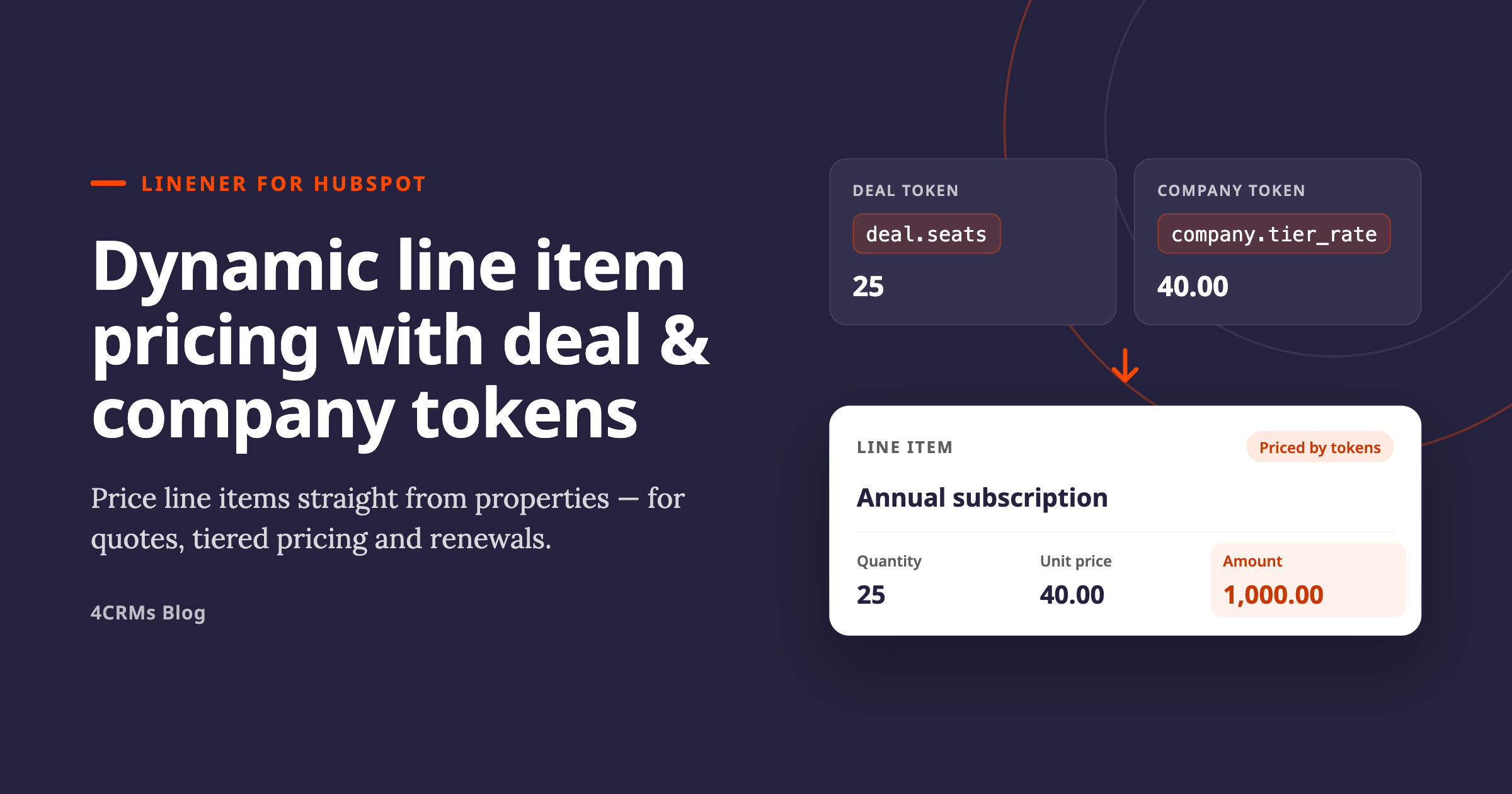
For a fixed package, such as a subscription plus a setup fee, use a bundle with "Delete existing line items before inserting". Bundle prices can use deal or company tokens, so the package can carry the price your team agreed instead of a hardcoded one. The Dynamic Line Item Pricing in HubSpot With Deal and Company Tokens guide shows how to set that up.
Mistakes to avoid
- Fixing the deal after the quote is published. The published quote's line items are frozen, so changes on the deal won't reach it. Run the clean-up before the quote is created.
- Leaving Update Deal Amount on for text-only changes. If you're only correcting a name or description, keep it off.
- Using "None" when you mean specific line items. With None, the update applies based on the product selection alone, with no value matching. Pick an operator and value if you need to target fewer line items.
- Expecting OR logic in conditions. All conditions in a template must pass (AND logic). There's no OR or nested logic, so cover alternatives with separate templates.
- Company tokens on deals without a company. Company-level tokens need the deal to be associated with a company before the workflow runs, and the source property must be a Number or Currency property.
- Editing a bundle without checking where it's used. A change to a bundle applies to every workflow that uses it.
What teams say
Mikkel Sørensen, Salgschef at Boligflow: "When we fill the properties in our deal, it automatically adds lines…"
Darren Rodman, Director at the Pitchmark Group: "Simple to use and the additions to line item editing in workflows has made my job a lot easier!"
Related reading
- New to LineNer's actions? Start with Add, Update and Delete Line Items in HubSpot Workflows.
- Want more on templates? Read Set Up and Use LineNer Templates for Faster Line Item Management.
- Working with filters? See How to Update Multiple Line Items in HubSpot Using Filters.
Check your next deal before it's quoted
Pick one deal type your team quotes often, list what usually goes wrong on it, and build the steps above for that one case first.
Try LineNer for free on the HubSpot Marketplace. Want help planning your pre-quote workflow? Contact the 4CRMs team. You can read more about the app on the LineNer page.