
Every HubSpot deal with more than one or two products quickly runs into the same problem: you need to change something - a price, a description, a quantity - but only on certain line items, not all of them. Native HubSpot workflows aren't built for this kind of precision. LineNer's Update Line Item in a Deal action was built specifically to solve it, with filtering logic built directly into the action itself.
This guide walks through exactly how the action works, field by field, with practical examples for each part of the setup.
Why Native HubSpot Workflows Fall Short Here
HubSpot workflows are designed around deals, contacts, tickets, and other primary objects. Line items live inside a deal as a collection, but workflows have no native way to reach into that collection and act on a subset of it based on the line item's own properties.
In practice, this creates a few recurring headaches for RevOps and sales teams:
- Blanket updates. If you want to change a price or description, native tools push the change to every line item on the deal - including ones that shouldn't be touched.
- Manual correction afterward. Someone has to go back into the deal and undo the parts of the automation that went too far.
- Workflow sprawl. Teams try to compensate by building dozens of conditional branches, one for each product or SKU combination - which becomes unmanageable fast.
- Inconsistent pricing and data. When updates rely on manual fixes, errors creep into quotes, invoices, and reporting.
LineNer's filtering removes the need for any of this. The action checks each line item against your filter criteria and only updates the ones that match.
A Field-by-Field Walkthrough of the Action
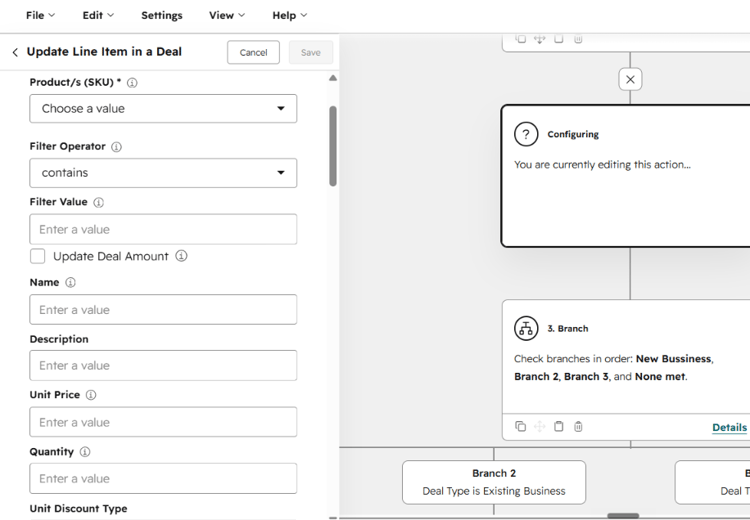
The Update Line Item in a Deal panel is split into two logical halves: first, you tell LineNer which line items to act on, and second, you tell it what to change about them.
1. Product/s (SKU) - Required
This is the starting point of the filter. You choose the product (or products) the action should look for among the deal's existing line items. This field is marked as required, since LineNer needs at least a baseline product reference to know what it's scanning for.
Tip: if your catalog uses consistent SKU prefixes or naming conventions (e.g., HW- for hardware, SUB- for subscriptions), this field combined with the filter operator below becomes a very efficient way to target entire product families at once, instead of selecting every SKU individually.
2. Filter Operator
Once a product/SKU reference is set, the Filter Operator dropdown defines how strict or loose the match should be. Available operators include:
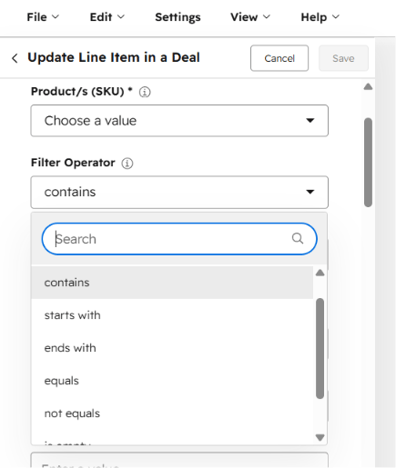
- None - no additional filtering beyond the product selection itself
- contains - matches any line item where the SKU or product value includes the filter text anywhere in the string
- starts with - matches line items whose SKU/product begins with the filter value
- ends with - matches line items whose SKU/product ends with the filter value
- equals - matches only an exact value
- not equals - matches everything except the exact value
- additional operators are available further down the list for more specific matching needs
Choosing the right operator matters: equals is best when you need surgical precision on one exact SKU, while contains or starts with are better when you're targeting a whole category of products that share a naming pattern.
3. Filter Value
This field activates once an operator is selected. Here you type the actual text to filter against - a SKU fragment, a product name segment, or an exact value, depending on the operator you picked in the previous step.
For example:
- Operator:
starts with, Value:HW-→ matches all hardware SKUs - Operator:
contains, Value:Pro→ matches any product with "Pro" anywhere in its name or SKU - Operator:
equals, Value:SUB-001→ matches only that one exact SKU
This is the mechanism that turns a blanket "update all line items" action into a precise, rules-based one.
4. Update Deal Amount (Checkbox)
This checkbox decides whether changes to line items should also recalculate the deal's total amount. There are two common scenarios:
- Checked: if you're changing unit prices or quantities and want the deal-level total to reflect the new figures automatically, without a separate recalculation step.
- Unchecked: if you're only updating descriptive fields (like Name or Description) and don't want to risk any unintended changes to the deal amount, or if amount recalculation is handled elsewhere in your workflow.
Leaving this unchecked is the safer default when you're not specifically working with pricing changes.
5. The Fields You Can Update
Once your filter is defined, you set what should change on the matched line items:
- Name - update how the line item is labeled, useful for standardizing naming conventions or appending campaign/version info
- Description - update the line item's description text, often used to add context for quotes or invoices
- Unit Price - change the per-unit price, useful for seasonal pricing, discounts, or price corrections
- Quantity - adjust how many units are on the line item, useful for renewals, upsells, or scaling existing orders
Each field accepts either a static, hardcoded value or a data token.
6. Using Data Tokens for Dynamic Updates
Clicking any update field opens the All data tokens panel. This is where LineNer becomes more than a simple find-and-replace tool - it lets your updates be dynamic and contextual rather than fixed.
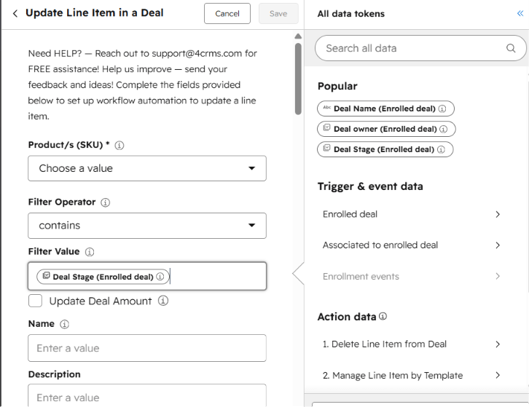
Available token sources include:
- Popular tokens - quick access to frequently used values like Deal Name, Deal owner, and Deal Stage from the enrolled deal
- Trigger & event data - properties from the enrolled deal itself, or from objects associated with it
- Action data - output from earlier actions in the same workflow. If, for example, a prior step in the workflow deleted a line item or applied a template ("Delete Line Item from Deal", "Manage Line Item by Template"), you can reference the result of that action in your update logic
This is particularly powerful in multi-step workflows: you can chain actions so that an earlier step calculates or sets a value, and a later "Update Line Item" step conditionally applies it to specific line items based on your filter.
Practical Examples
Example 1: Seasonal Discount on a Product Category
You want to reduce the unit price on all "Hardware" SKUs by applying a new lower price, but leave software subscriptions untouched.
- Product/s (SKU): Hardware product reference
- Filter Operator:
starts with - Filter Value:
HW- - Update Deal Amount: checked (so the deal total reflects the new pricing)
- Unit Price: new discounted value
Result: only line items with SKUs starting with HW- get the new price; everything else on the deal stays the same, and the deal amount updates automatically to reflect the change.
Example 2: Standardizing Descriptions Without Touching Pricing
Your team wants every line item containing "Trial" in its name to have a consistent description for clarity on quotes, without affecting price or quantity.
- Product/s (SKU): relevant trial product
- Filter Operator:
contains - Filter Value:
Trial - Update Deal Amount: unchecked
- Description: standardized text, or a token pulling in the deal's renewal date
Result: descriptions update consistently across matching line items, with zero risk to pricing data since the deal amount checkbox is left off.
Example 3: Quantity Adjustment Tied to a Prior Workflow Step
A workflow first runs a "Manage Line Item by Template" action that determines how many additional licenses a customer needs, then a second "Update Line Item in a Deal" action applies that number to the matching SKU.
- Product/s (SKU): the license SKU
- Filter Operator:
equals - Filter Value: the exact SKU
- Quantity: a token referencing the output of the earlier "Manage Line Item by Template" action
Result: the quantity update is fully dynamic, driven by logic earlier in the same workflow rather than a fixed number.
Best Practices When Setting Up Filters
- Start narrow, then widen. Use
equalsfirst while testing, then switch tocontains/starts withonce you're confident the logic targets the right items. - Use consistent SKU naming. Filter operators are only as useful as your product catalog's naming consistency. Standardizing SKU prefixes pays off across every filtered workflow you build.
- Be deliberate with "Update Deal Amount." Only check it when you intend the deal total to shift. Leaving it on by default is a common source of unexpected deal value changes.
- Test on a sample deal first. Before activating any filtered update, run the workflow on one deal with a realistic mix of line items to confirm only the intended ones change.
- Chain actions for dynamic logic. Combine "Update Line Item in a Deal" with other LineNer actions (like deleting items or applying templates) and use action-data tokens to build multi-step automation instead of one-off static updates.
Why This Matters for RevOps Teams
Filtered line item updates turn a manual, error-prone process into something predictable:
- No manual cleanup after a workflow run touches the wrong items
- Fewer, smarter workflows - one well-built filter can replace several conditional branches
- Accurate quotes and invoices, since pricing and naming logic is enforced consistently at the line item level
- Confidence at scale, whether a deal has 3 line items or 30
Getting Started
The filtering fields are built directly into LineNer's Update Line Item in a Deal workflow action - there's nothing extra to install. Add the action to your workflow, set your Product/SKU and Filter Operator/Value, decide on Update Deal Amount, define what should change, and test before activating.