
CloneNer duplicates deals, tickets, contacts, companies, and custom objects in HubSpot - along with the properties and associations you choose to carry over. This guide covers all four ways to clone: manually, via Auto-Rules, via Templates, and via Workflows, plus how tokens and calculations work.
{{cta('212991934114','justifycenter')}}
Why cloning matters
Without automation, teams end up rebuilding the same deals and tickets from scratch - same properties, same associations, same line items - every single time. That costs hours, and manual re-entry means every rep fills fields slightly differently, which breaks reporting and downstream automation. Handoffs between teams (Sales to CSM, Sales to PM, Support escalations) turn into manual rebuild work instead of a clean handoff.
CloneNer removes that repetition: clone once, automate the rest, and keep data consistent across pipelines and teams.
Which objects does CloneNer work with
- Contacts
- Companies
- Deals
- Tickets
- Appointments
- Courses
- Listings
- Services
- Custom objects (any that exist in your portal)
The set of available actions (manual, auto-rules, templates, workflows) is the same across all of these - the only difference is which properties and associations can be carried over into the copy.
Where to find CloneNer
- Open any record - deal, ticket, contact, company, or custom object.
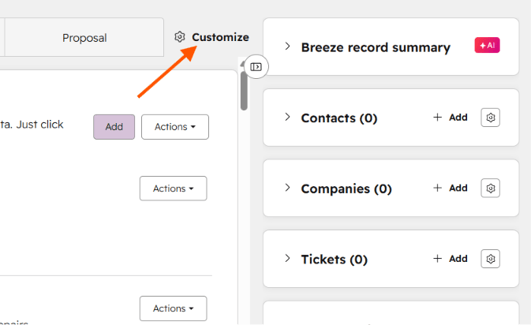
- In the right sidebar, click Customize.
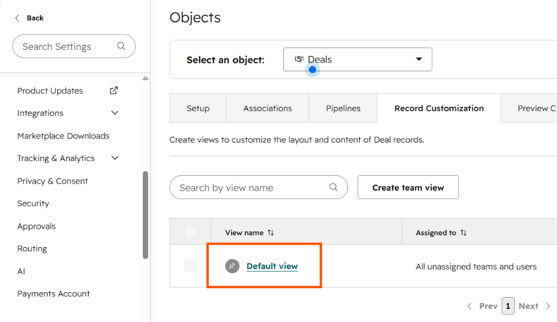
- Inside settings -> Objects, choose Default View.
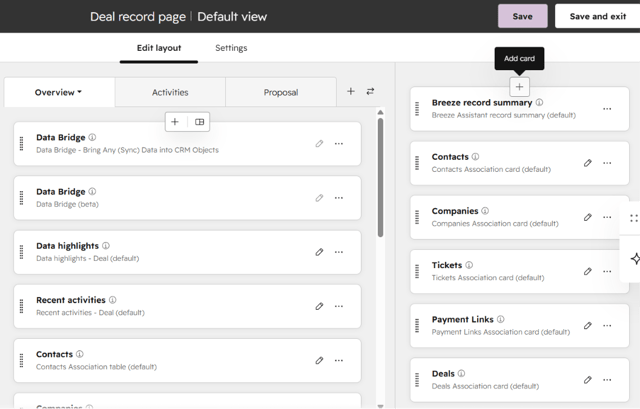
- Inside the Record page on the Right sidebar, click Add Card.
- Find CloneNer in Card Library and click Add.
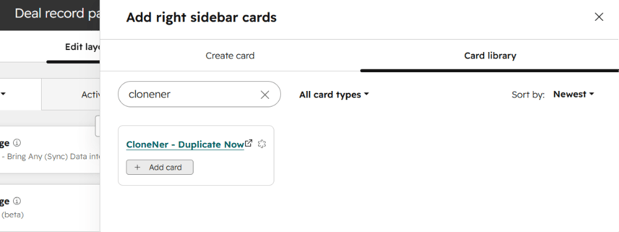
- Then return to your record.
- Click the Actions dropdown and pick the action you need.
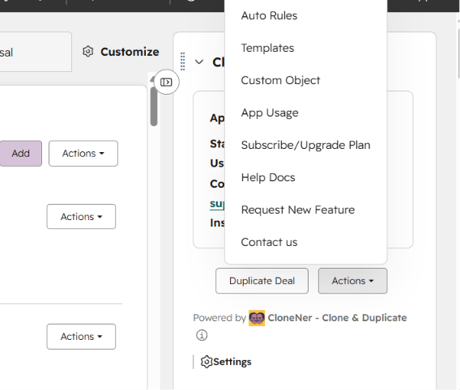
Method 1: Manual clone
Use this for a one-off copy of a single record.
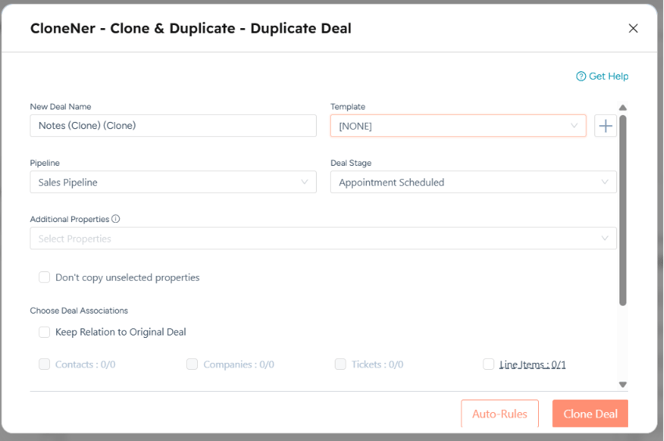
- Open the record you want to clone and click Duplicate.
- Set a name for the new record.
- For deals, choose the pipeline and stage the copy should land in.
- Choose which properties and associations to carry over (contacts, line items, notes, tasks - depending on the object type).
- Click Clone. The new record is created immediately with the data you selected.
Method 2: Auto-Rules
Use this when cloning needs to happen every time a specific condition is met, without setting up a full workflow.
- In the CloneNer card, select Auto-Rules.
- Describe the condition using "if this, then that" logic: for example, if a deal in pipeline A reaches a certain stage, clone it into pipeline X at stage Y.
- Choose which associations to carry into the copy.
- Save the rule.
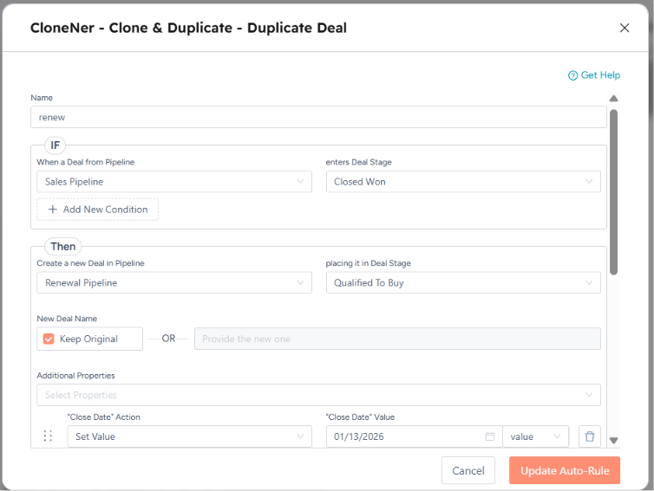
A common example: handing a deal off from Sales to the CSM team once it's marked as closed-won.
Method 3: Templates
Use this when the same cloning setup (pipeline, stage, properties, associations) needs to be applied repeatedly without reconfiguring it each time.
- Create a template with the cloning settings you want.
- Next time you clone, pick that template instead of setting every parameter manually.
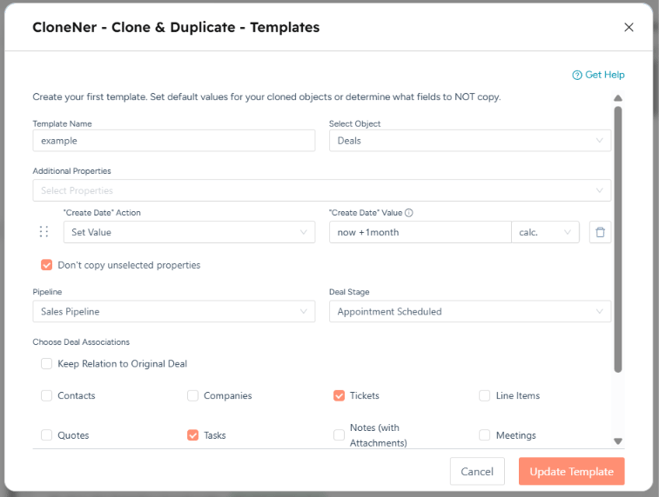
Useful for recurring scenarios: monthly or quarterly deals, renewal deals, standard tickets.
Method 4: Workflows
Use this for full automation of cloning inside existing HubSpot workflows.
- Create or open a workflow with the trigger you need.
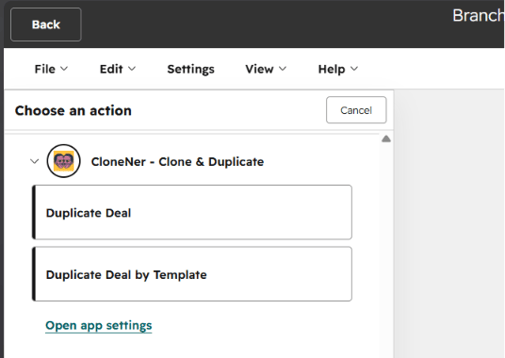
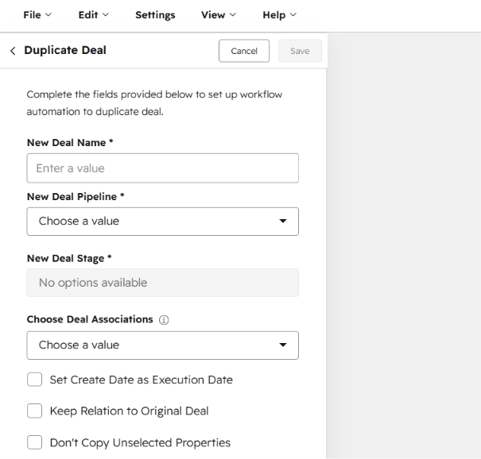
- Add the CloneNer action - Duplicate / Duplicate by Template - to the workflow's action list.
- Configure the name, pipeline, stage, and associations for the clone.
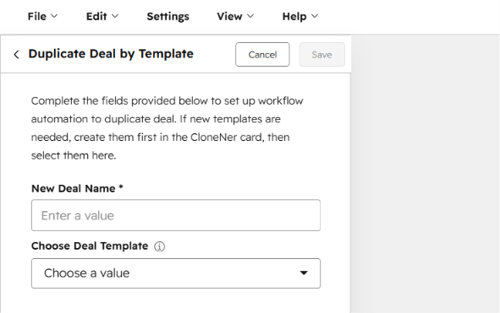
- Or use Templates
- Click Save, then Review and publish.
Workflow clones require the Starter plan or higher. The Free plan lets you test this feature; Basic does not include it.
Tokens & Calculations
CloneNer supports two types of dynamic values when cloning:
- Tokens - type
{{in a property field to pull data from the original record: deal name, close date, deal owner, and so on. The value is filled in automatically, no manual typing needed.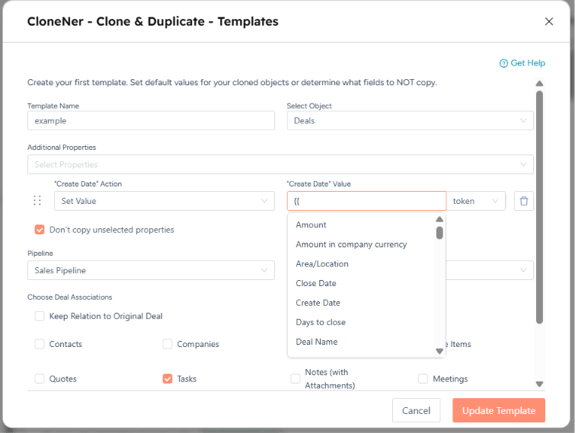
- Calculations - instead of a static value, set a formula. For example, calculate a discounted deal amount or a new date (Close Date, Next Renewal Date) based on logic, rather than entering it by hand every time.
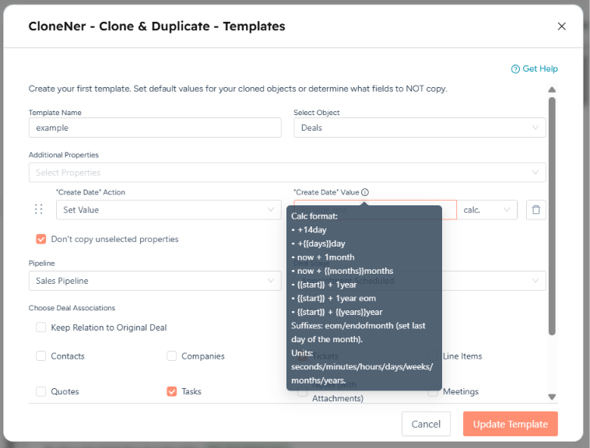
This works across Manual clone, Auto-Rules, and Templates.
Use cases for using the CloneNer App
- Renewals - clone last year's closed-won deal into the renewal pipeline with the same products, deal type, and region. Reps only adjust dates and amounts.
- Sales → CSM handoff - set an Auto-Rule: if deal stage = Closed Won, clone the deal into the CSM pipeline.
- Recurring tickets - clone a ticket template for repeat onboarding flows or escalation processes instead of building each one manually.
- Standardized proposals - use Templates so every rep clones deals with the same pipeline, stage, and property setup.
- Workflow-scale automation - add a CloneNer action inside a HubSpot workflow to clone deals automatically, with no manual rebuild step at all.
Who CloneNer is for
- Sales - renewals, repeat deals, and standardized proposals with the same line items
- Customer Success / CSM - picking up a deal the moment Sales marks it Closed Won
- PMO / Project Management - moving a won deal into a project pipeline without re-entering data
- Support / Service - recurring tickets for onboarding, escalations, or repeat requests
- RevOps / Sales Ops - standardizing handoffs between teams with Auto-Rules and Workflows
- Operations - cloning custom objects for subscriptions, memberships, or other recurring processes
Getting started
Pick your most repetitive cloning task - a renewal, a handoff, a recurring ticket - and set up a Template or Auto-Rule for it first. Once that one is running, every record as it clones itself, and the time you used to spend rebuilding records goes back into actual selling, support, or delivery work.