
As HubSpot continues to expand its data model with newer objects like appointments, listings, courses, and services, more teams are starting to rely on them in day-to-day operations. These objects are often used to manage structured, repeatable data - bookings, inventory, offerings, or service packages.
However, working with this type of data usually involves duplication. For example:
- creating similar appointments with slight variations
- reusing listing structures with updated details
- duplicating course setups across cohorts
- copying service configurations for different customers
HubSpot does not provide a native way to quickly clone records inside these objects, which leads to manual work and repetitive data entry.
This is where CloneNer extends its functionality.
Supported objects
With this update, cloning is available inside the following objects:
- appointment
- listing
- courses
- services
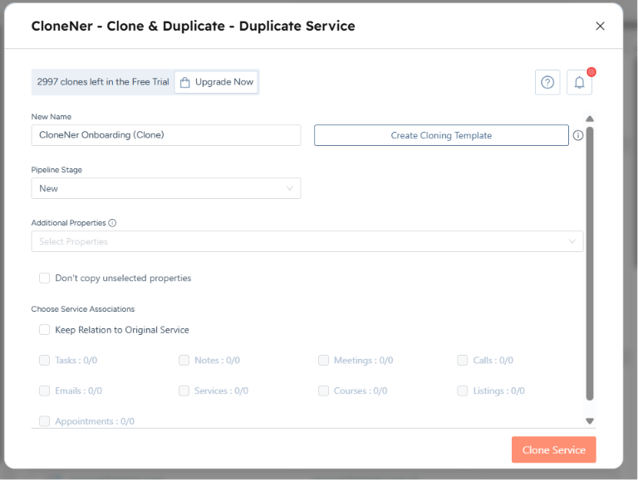
This allows you to duplicate records directly within these objects, without switching contexts or rebuilding data from scratch.
How cloning works inside objects
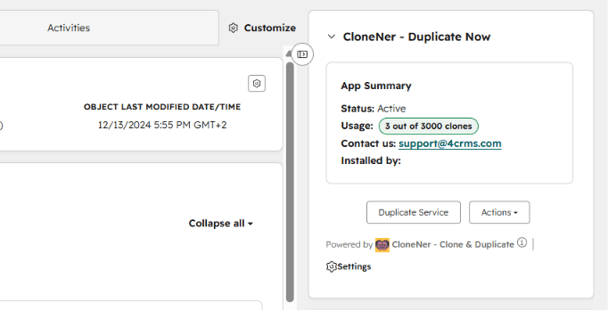
Cloning is handled through the CloneNer app card, which must be added to each object before use.
Step 1 - Add the CloneNer card to the object
To enable cloning, you need to configure the object view:
- go to the object where you want to use cloning - for example, appointment, listing, courses, or services
- open any record inside this object
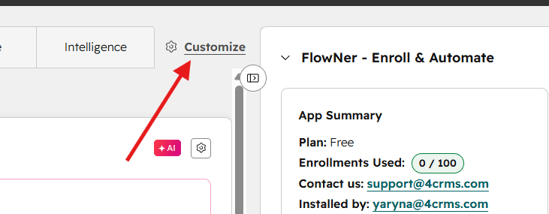
- click Customize
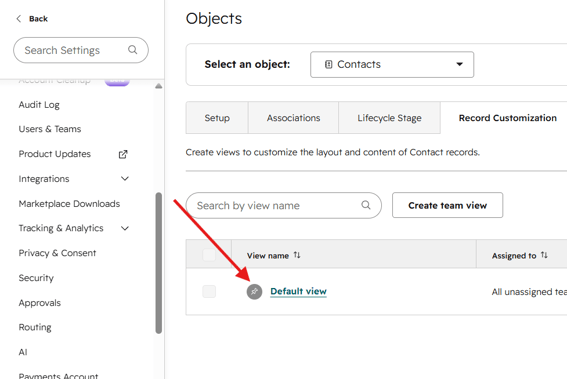
- go to Default View
- on the right-hand side panel, click the "+" icon to add a new card
- find CloneNer in the list of available app cards
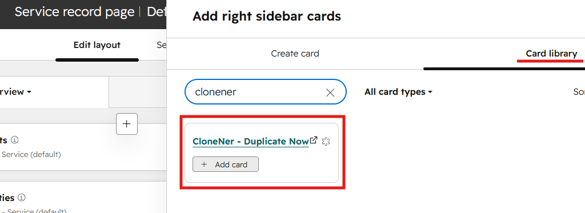
- add it and save your changes
Once saved, return to the record - the CloneNer card will now be visible inside the object.
Step 2 - Clone a record
After the card is added:
- open any record inside the configured object
- locate the CloneNer card in the right panel
- use it to create a duplicate of the current record
The new record will be created with the same structure and data, depending on your cloning setup.
Setup - required per object
Cloning inside these objects is not enabled by default. The CloneNer card must be added manually to each object.
Important:
- setup is required individually for appointment, listing, courses, and services
- adding the card to one object does not enable it for others
- cloning is available only where the app card is visible
This ensures flexibility and control over where cloning is used.
When to use this
This feature is especially useful when:
- you manage repeatable records inside custom or extended objects
- your team frequently duplicates structured data
- you want to reduce manual input and errors
- workflows are not part of your process
Summary
By enabling cloning directly inside appointments, listings, courses, and services objects, CloneNer helps teams work faster with structured data. Once the app card is added to each object, cloning becomes available exactly where it is needed.