
What is the Copy Line Items Between Deals App?
Imagine you’re working on multiple deals in HubSpot, and each one needs the same set of line items. Instead of adding them manually, what if you could copy them instantly?
The Copy Line Items Between Deals (click to install) app enables you to duplicate line items effortlessly, saving time and ensuring accuracy.
In this guide, we'll walk you through the setup process step by step so you can start using this feature right away. Follow these simple instructions to streamline your deal management in HubSpot.
How to Install the Copy Line Items Between Deals
- Navigate to the HubSpot Apps Marketplace and find Copy Line Items Between Deals
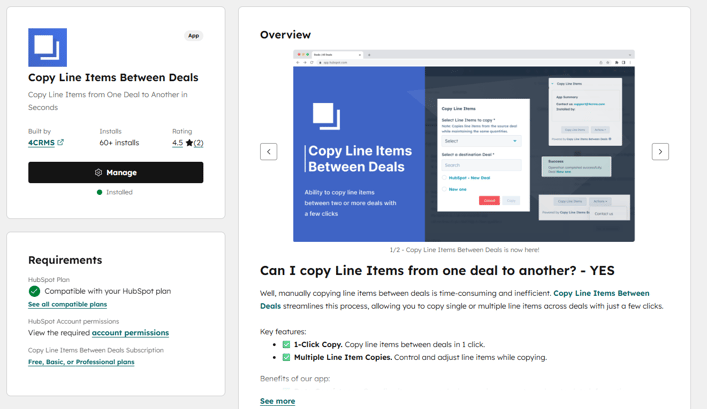
- Click on "Install" and follow the prompts to complete the installation
- Select your HubSpot account (portal). Ensure you connect the correct HubSpot account, as this action cannot be changed later.
- Click "Choose Account", then review the requested scopes on this screen.
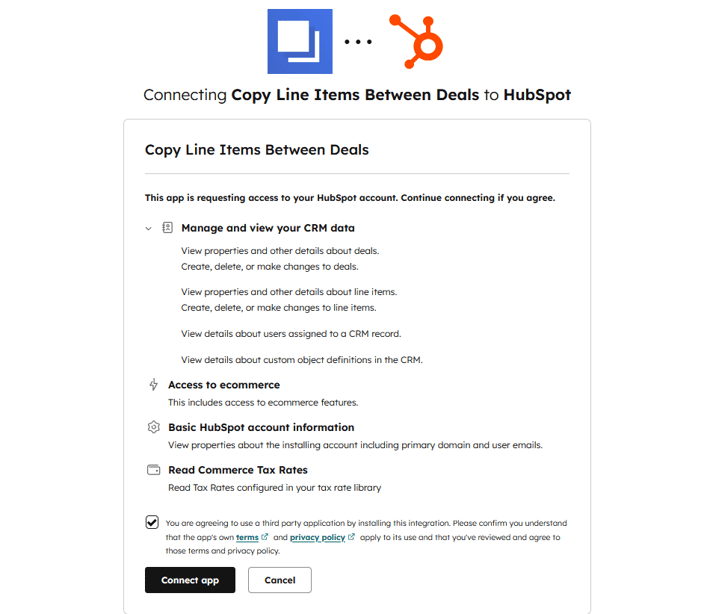
Click "Connect app". That's it! Thanks.
Configure the Copy Line Items Between Deal App
To get started with the Copy Line Items feature, you must first complete a few essential setup steps.
Open the deal from which you want to copy the line items and go to the Customize Record Settings. Switch to the default view.
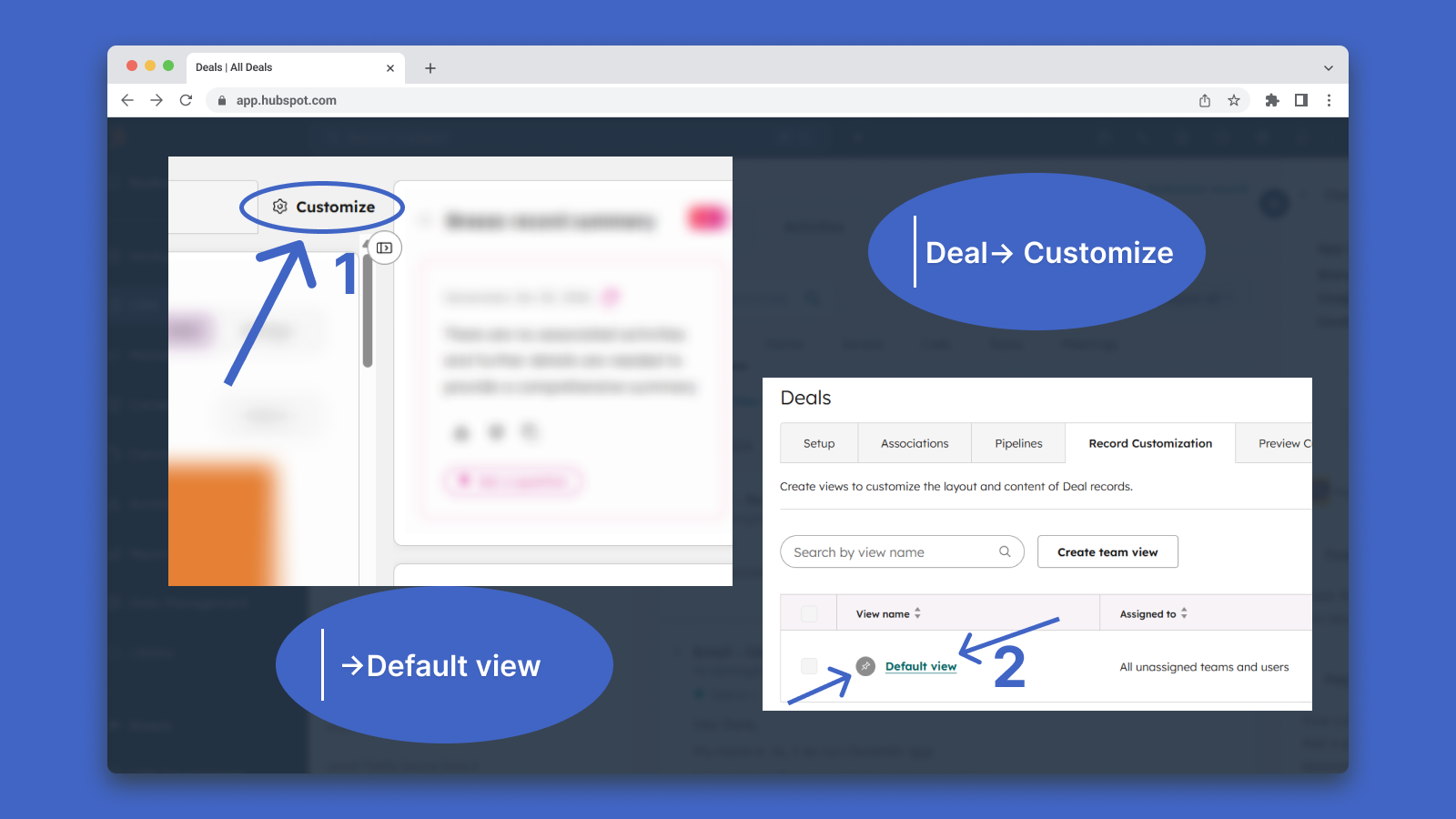
Open the right sidebar and click on "Add Cards".
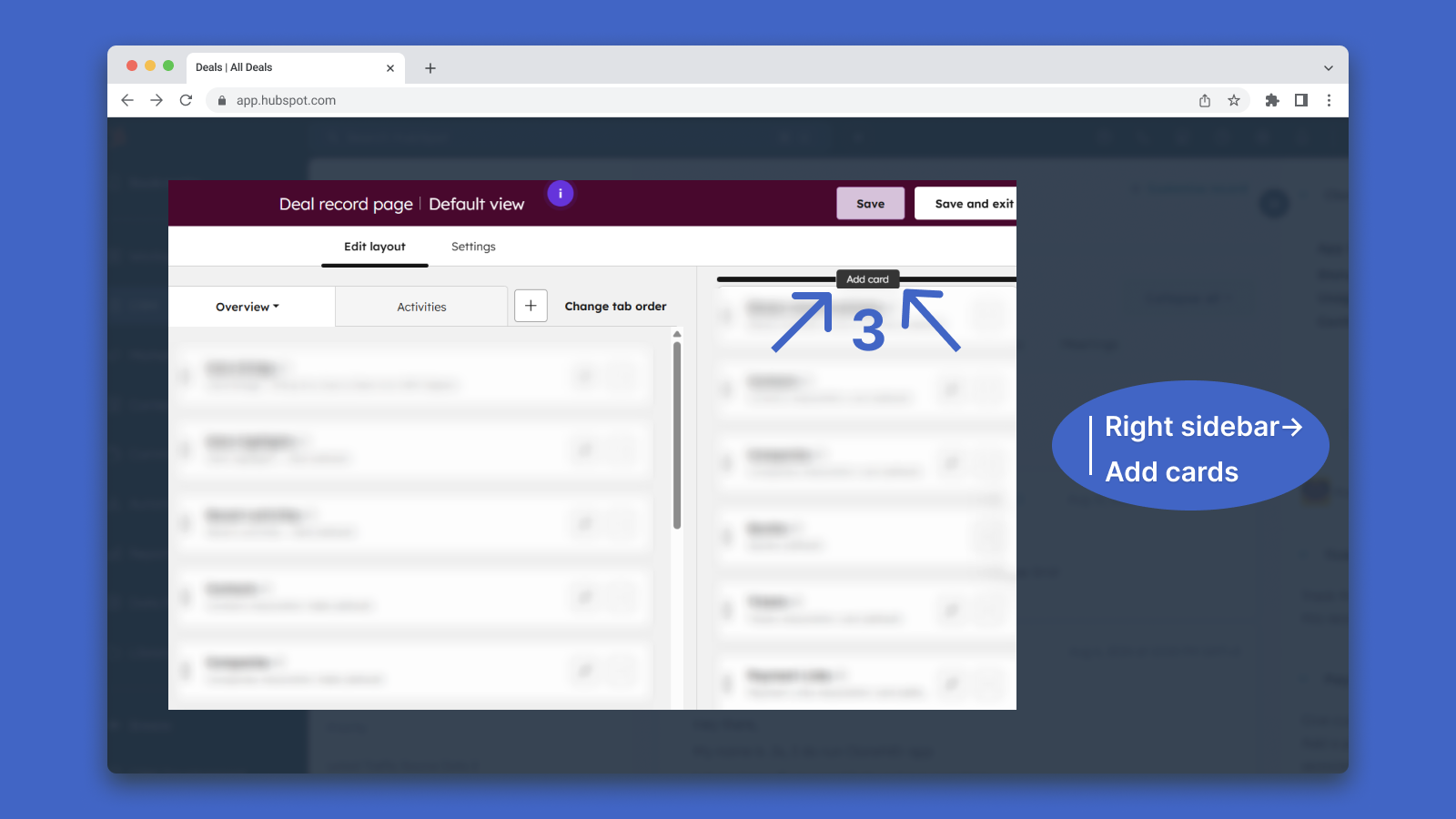
In the "Add right sidebar cards" → "Card library" section, find "Copy Line Items", select it, and click "Save and Exit".
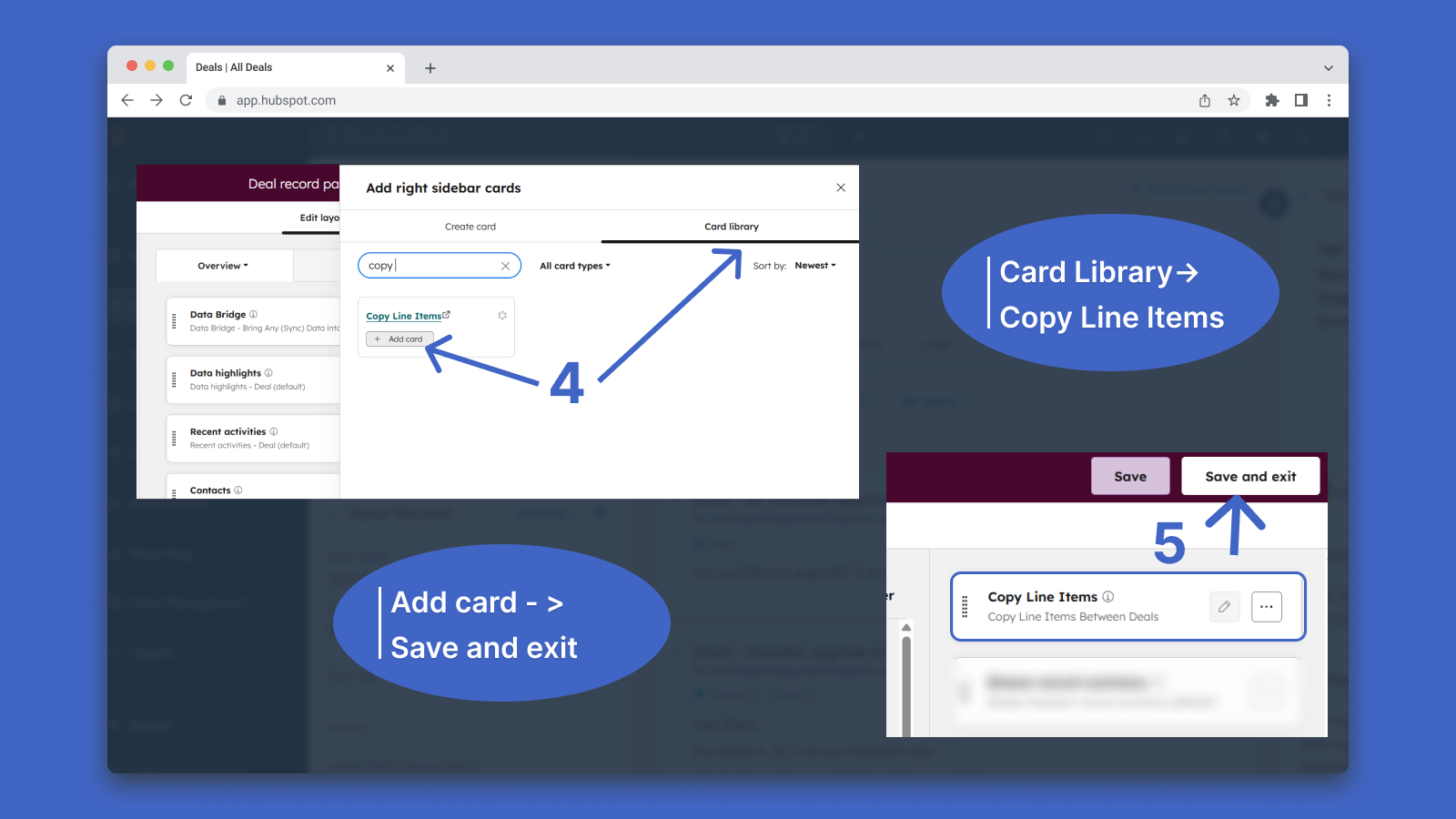
By default, the new card will appear at the bottom. If needed, you can reposition it using the drag-and-drop dots on the left.
Enjoy copying line items between deals!
How to Use Copy Line Items Between Deals [Guide]
Once you have done all the steps before, it's finally time to get started!
1. Return to the deal from which you want to copy the line item, and the "Copy Line Items" card will now be in the position you placed it.
2. Click on "Copy Line Items", and a menu will appear.
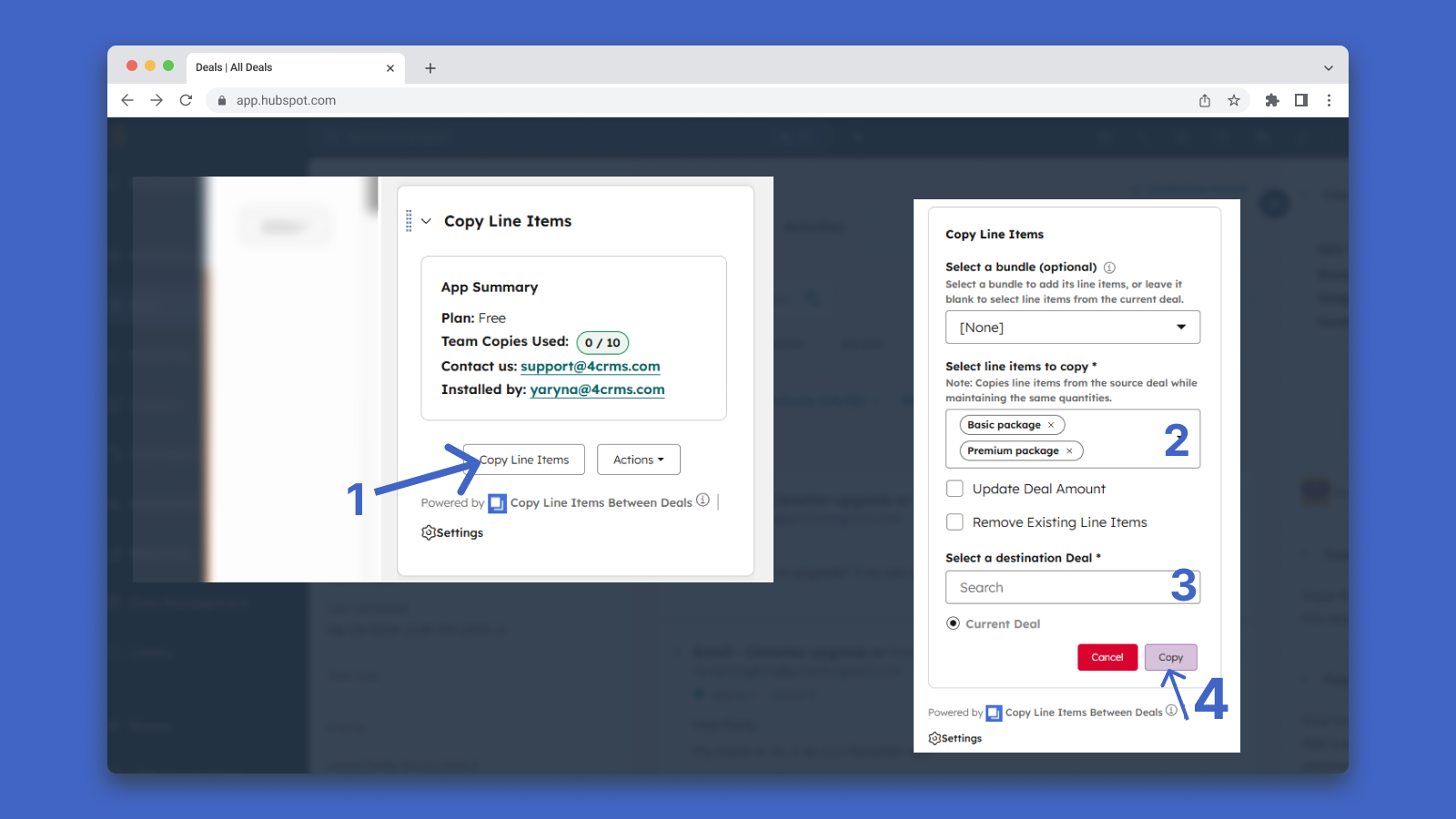
3. You will see all the current line items from the deal. Select the destination deal where you want to copy them. Once you've made your selections, click "Copy".
A confirmation notification will appear. To verify, open the destination deal - the copied line items should now be visible among all other line items.
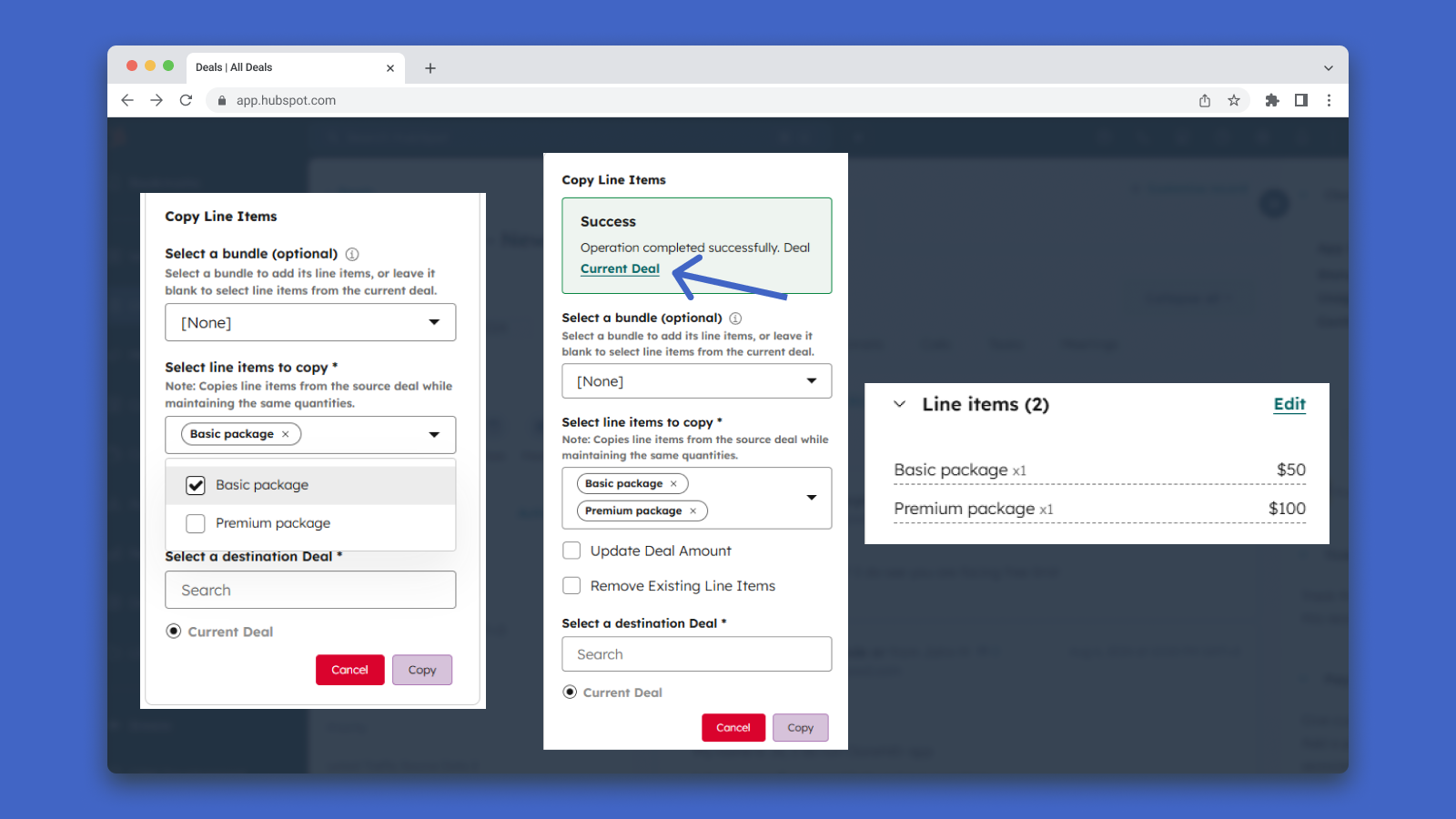
Feel free to give it a try yourself.
How to Uninstall the App
To remove Copy Line Items Between Deals from your HubSpot account, please follow the next steps:
- Go to the Connected Apps section under the integration menu
- Find the Copy Line Items widget
- Below the "Actions" dropdown, select and click "Uninstall"
Conclusion
Ready to make coping line items from one deal to another with 1-click? - Let`s start with Copy Line Items!

%201.png)