How Small Businesses Manage Follow-Ups in HubSpot Starter
Tired of follow-ups that happen "whenever someone remembers"? A pest control owner in Texas put it exactly that way in a recent HubSpot Community thread. Bookings come in by phone, jobs live on a whiteboard, and customer details live in his head.
A five-person B2B team has the same problem in a different shape. A rep sends a quote, sets a reminder, and the second and third emails depend on memory.
Both businesses usually run HubSpot Starter, and HubSpot Starter doesn't include sequences. This guide shows what you can automate on Starter today, compares your options side by side, walks through one example of each kind of business, and gives you prompts for writing the emails.
Quick answer: On HubSpot Starter you can automate tasks, internal reminders and record updates when a deal changes stage. With Service Hub Starter you can email a customer when a ticket opens or closes, and with Marketing Hub Starter you can send follow-up marketing emails from simple workflows. What Starter can't do is send multi-step, one-to-one sales emails from a rep's own inbox. That needs sequences (Sales Hub Professional) or an app such as FlowNer Sequences.
Key takeaways
- Split your follow-ups into two kinds: customer follow-ups after a job or purchase, and sales follow-ups that chase a lead or a quote. They need different tools.
- Starter handles most customer follow-ups natively, especially after HubSpot's September 2026 Starter refresh.
- Sales follow-up is the gap. Sequences are a Professional feature, and every sender needs a paid seat.
- Start with a few fields and one pipeline. Automate only after a few weeks of real data.
What is a follow-up in HubSpot?
A follow-up is any planned contact after a first interaction: a thank-you after a job, a reminder that a service is due, or a second email after a quote. In HubSpot, follow-ups are handled by tasks (a reminder for a person), automations (an action HubSpot takes on its own), marketing emails (one message to many contacts) or sequences (a series of one-to-one emails from a rep's inbox).
Customer follow-ups vs. sales follow-ups
| Customer follow-up | Sales follow-up | |
|---|---|---|
| When | After a job, delivery or purchase | Before a deal is won |
| Examples | Thank-you, review request, next-service reminder | Quote follow-up, post-demo check-in, "did you see my email?" |
| Should feel like | A friendly note from the business | A personal email from one rep |
| Who it comes from | The business | A named rep |
| Natively on Starter | Mostly yes | Only manually: templates plus tasks |
| Best tool on Starter | Pipeline automation, ticket emails, simple workflows | FlowNer Sequences, or upgrade for native sequences |
Keeping the two apart saves you from the most common mistake: sending sales follow-ups as marketing emails, which prospects spot immediately.
Keeping the two apart saves you from the most common mistake: sending sales follow-ups as marketing emails, which prospects spot immediately.
What HubSpot Starter automates natively (2026)
HubSpot refreshed Starter on 29 September 2026. Here's what matters for follow-up:
| Starter feature | What it does for follow-up | Hub needed | Sends a customer email? |
|---|---|---|---|
| Pipeline stage automation | Creates and assigns a task, sends an internal notification, or edits a record when a deal, ticket or project enters a stage | Any Starter | No (internal only) |
| Ticket status automation | Emails the customer when a ticket is opened or closed | Service Hub Starter | Yes |
| Simple workflows | Up to 10 actions on a form or marketing email: delays, marketing emails, notifications, tasks, segment changes | Marketing Hub Starter | Yes (marketing email) |
| Contact and company automations | Simple triggers and actions from records: update a property, create a task, send a notification | Starter (Sept 2026 refresh) | No |
| Prospecting Agent | Researches contacts and drafts personalized outreach for you to approve; can follow rules for ongoing outreach; uses HubSpot Credits | Starter (Sept 2026 refresh) | Drafts outreach for approval |
| Email templates + tasks | A reminder for the rep, who sends a saved email in one click | Any Starter | Yes, but manually |
| Email Sync | Logs replies to the right contact and deal | Starter (Sept 2026 refresh) | No |
Sources: Set up automations in the updated board view, Set up pipeline automations for objects, Use automation with emails, and HubSpot's September 2026 Starter announcement. Two details from the knowledge base: non-transactional ticket emails only reach contacts set as marketing contacts, and your exact options depend on which Starter hubs you have.
Every follow-up option compared
| Option | Sends from | Multi-step? | Fully automatic? | Plan needed |
|---|---|---|---|---|
| Templates + tasks | Rep's inbox | Yes, one task per step | No, the rep clicks send | Any Starter |
| Simple workflow | HubSpot marketing email | Yes, up to 10 actions | Yes | Marketing Hub Starter |
| Ticket close email | Business address | No, one email | Yes | Service Hub Starter |
| Prospecting Agent | Drafts for the rep | Rule-based | Partly, with approval | Starter + HubSpot Credits |
| FlowNer Sequences | Rep's connected mailbox | Yes, Email and Wait steps | Yes, after enrollment | Starter + FlowNer |
| HubSpot sequences | Rep's inbox | Yes, emails + tasks | Yes, after enrollment | Sales/Service Hub Pro + seat per sender |
Which option should you use?
| If you need to… | Use |
|---|---|
| Say thank you after every job | Ticket close email (Service Hub Starter) or a "Job done" task |
| Remind a customer their next service is due | Create the next deal now + a stage task to call |
| Follow up on every form fill with information | Simple workflow on the form (Marketing Hub Starter) |
| Ask happy customers for a review | Thank-you email with a review link |
| Chase quiet quotes with 2–3 personal emails | FlowNer Sequences |
| Draft a personalized first email to a prospect | Prospecting Agent |
| Start sales emails automatically from a workflow | Upgrade to Sales Hub Professional or Enterprise |
| Mix emails with call tasks in one cadence | Upgrade to Sales Hub Professional |
Example 1: A local service business (pest control)
The situation: about 15 jobs a week, mostly booked by phone. The owner wants a thank-you the day after each job and a reminder when quarterly service is due.
1. Add three fields. On the deal, track service address, service plan (quarterly / one-off) and next service date. That replaces the whiteboard.
2. Make each job a deal. Use a simple pipeline such as Booked → Scheduled → Job done. Use the HubSpot mobile app to create the contact and deal while you're still on the phone.
3. Automate the thank-you. You have two native routes:
- Service Hub Starter: track jobs as tickets instead of deals, and add a "send email" automation for when a ticket closes. Use the email to ask for a Google review. For a local business that's often worth more than the thank-you itself.
- Sales Hub Starter only: add a "Job done" stage automation that creates a task for "Send thank-you" due the next day. It's one click from a saved template.
4. Never miss the quarterly visit. When a job moves to "Job done", create next quarter's deal straight away, with its close date set to the next service date. Your pipeline becomes a calendar of upcoming visits. Add a stage automation that creates a "Call to book" task when that deal reaches its stage.
5. Run it manually for a month. Get every job into HubSpot for a few weeks before automating more. You'll see which follow-ups actually bring customers back.
The whole setup runs on native Starter. No app needed.
Example 2: A small B2B sales team
The situation: a four-person IT services firm. About 30 quotes a month go out, and roughly half go quiet. Each rep follows up when they remember.
What Starter does natively:
- A "Quote sent" stage automation creates follow-up tasks at day 3 and day 7.
- Reps send each follow-up from a saved email template, and replies log to the deal with Email Sync.
- Prospecting Agent can draft personalized follow-ups for a rep to approve.
Where it breaks: every follow-up still needs a rep to open a task and click send. With 15 quiet quotes and three emails each, that's 45 manual sends a month for one rep, and the ones that slip are the deals you lose. What this team needs is a sequence: a series of one-to-one emails from the rep's own inbox that goes out on schedule. On HubSpot, sequences need Sales Hub Professional or Enterprise, plus an assigned Sales or Service seat for every sender (HubSpot Knowledge Base: Create and edit sequences).
Adding sales follow-up on Starter with FlowNer Sequences
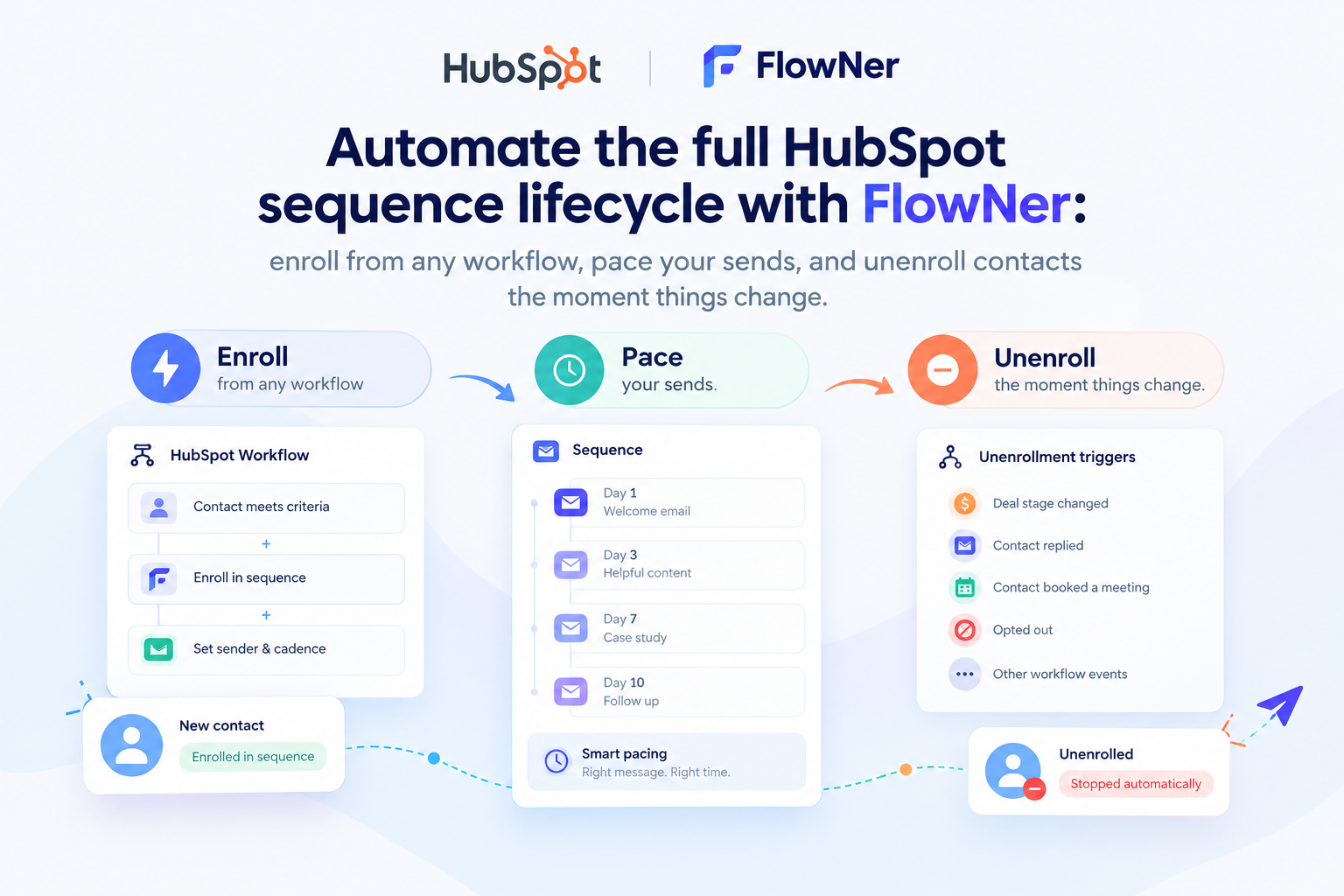
FlowNer Sequences is a sequence engine from 4CRMs, built into your HubSpot Starter portal. You build sequences, connect mailboxes, enroll contacts and track results without leaving HubSpot, and there's no separate tool to log into. It runs its own engine rather than HubSpot's native sequences, which is why it doesn't need a Sales Hub Professional seat.
It's ready to test drive on your own Starter portal.
What you can build:
- Email and Wait steps, for example: Email → wait 3 days → Email → wait 4 days → Email.
- A send window, with an option to send on business days only.
- Personalization tokens for first name, company and job title.
- A new thread per step, or keep follow-ups in one thread.
- Draft, active and paused states, plus shared sequences the whole team uses.
Emails send from the rep's own connected mailbox, like a normal one-to-one email. Wait timing counts from when the previous email actually sent, not from enrollment. A dashboard shows emails sent, replies, bounces and unsubscribes.
FlowNer Sequences vs. HubSpot sequences
| FlowNer Sequences | HubSpot sequences | |
|---|---|---|
| HubSpot plan | Starter | Sales or Service Hub Professional / Enterprise |
| Paid HubSpot seat per sender | No Sales Hub seat needed | Yes, Sales or Service seat |
| Sends from | Rep's connected mailbox | Rep's connected inbox |
| Step types | Email, Wait | Automated email, manual email, call and task steps |
| Enrollment | Manually or from a list | Manually, in bulk, or by workflow (Enterprise) |
| Tracking | Sent, replies, bounces, unsubscribes | Sequence analytics in HubSpot |
| Where you use it | Inside HubSpot (app) | Inside HubSpot (native tool) |
How the B2B team in Example 2 would use it:
- Each rep connects their mailbox.
- Build one "Quote follow-up" sequence: Email (anything unclear in the quote?) → Wait 3 days → Email (offer a 15-minute walk-through) → Wait 4 days → Email (should I close this out?).
- Once a week, enroll the contacts on quiet quotes from a list, or enroll a single contact by hand.
- Pilot with 10 contacts first. Check that tokens render and the timing looks right, then use it for everyone.
What it doesn't do: it doesn't start sequences from a workflow on Starter, and steps are Email and Wait only, with no call or task steps.
For the full product tour, read [PLACEHOLDER: "Sequences Without the Upgrade: How FlowNer Brings Automated Follow-Ups to HubSpot Starter" — URL to be confirmed].
[CTA 1] See what it costs to run sequences on Starter with FlowNer, versus upgrading every rep → FlowNer calculator
Follow-up timing cheat sheet
| Scenario | Type | Step 1 | Step 2 | Step 3 |
|---|---|---|---|---|
| After a completed job | Customer | Thank-you + review ask, next day | — | — |
| Recurring service | Customer | Reminder call, 1–2 weeks before due date | — | — |
| Form inquiry, no call booked | Sales | Same day: answer + one question | +2 business days: short resource | +4 business days: last check-in |
| After a demo or first meeting | Sales | Same day: recap + next step | +3 business days: answer the objection | +5 business days: open door |
| Quote sent, no reply | Sales | +3 days: anything unclear? | +4 days: offer a walk-through | +7 days: should I close this out? |
| Deal lost on timing | Sales | 60–90 days later: light check-in | +10 days: one useful update | stop |
These are starting points, not rules. Adjust to your sales cycle and watch the reply rate.
AI prompts for writing your follow-ups
HubSpot's Breeze Assistant on Starter can draft emails, and so can any AI assistant you already use. Paste a prompt, fill in the brackets, then edit the result so it sounds like you.
Thank-you and review request (customer):
Write a short, friendly thank-you email from [business name], a [type of business] in [town], to a customer after we completed [service] at their home yesterday. Thank them by first name, mention one detail of the job, and ask them to leave a Google review with this link: [link]. Under 90 words, plain text, no exclamation marks in the subject line.
Next-service reminder (customer):
Write a reminder email to [first name] that their next [quarterly service] is due around [date]. Offer two time slots, [slot 1] and [slot 2], and ask them to reply with the one that suits. Warm but brief, under 70 words, from [owner name].
Quote follow-up, 3-email series (sales):
I sent a quote for [product/service] to [first name] at [company], a [industry] business, [X] days ago and haven't heard back. Write three short follow-up emails: (1) check whether anything in the quote is unclear, (2) offer a 15-minute walk-through, (3) a polite "should I close this out?" note. Each under 80 words, written like a person, not a marketing email, with one question each.
Post-demo recap (sales):
Write a recap email after a demo with [first name], [job title] at [company]. Summarize the three points they cared about: [point 1], [point 2], [point 3]. Propose one next step: [next step]. Under 120 words, plain language.
Subject line check:
Here's my follow-up email: [paste email]. Suggest five subject lines under 6 words that read like a personal email between colleagues. Avoid words that look like marketing or spam.
Always read AI drafts before sending, check names and details, and never let an AI invent a price, date or promise.
Why teams trust 4CRMs
4CRMs builds apps that extend HubSpot, and FlowNer is one of six:
| HubSpot Certified App Partner | As shown on our HubSpot Marketplace listings |
| 2,000+ active app installs | Customers in 50+ countries |
| 4.9-star rating | CloneNer on the HubSpot Marketplace |
| Money-back guarantee | [CONFIRM TERMS BEFORE PUBLISHING: window, plans covered, how to claim — must match 4crms.com refund policy] |
| Built by HubSpot users | Developed by HubSpot customers, for HubSpot customers |
When upgrading to Professional is the better call
Upgrade instead if you:
- want sequences to start automatically from a workflow (for example, the moment a deal changes stage),
- rely on call or task steps inside your sequences, or
- need Professional for other reasons anyway, such as full workflows or custom reporting.
Already on Sales Hub Professional? You don't need FlowNer Sequences. FlowNer's workflow action enrolls contacts into native HubSpot sequences instead: see the FlowNer setup guide.
Tips for follow-ups that actually happen
- One owner per follow-up. Every task or sequence has a named person. "The team" doesn't follow up.
- Short beats clever. Three short emails get more replies than six long ones.
- Stop when they reply. Check how replies are handled before going live, and tell reps what to expect.
- Don't mix the two kinds. Keep customers in a sales sequence out of your newsletter that week.
- Review monthly. Look at replies, bounces and unsubscribes. Rewrite or retire follow-ups that don't earn replies.
Common mistakes
| Mistake | Why it hurts | Fix |
|---|---|---|
| Sending sales follow-ups as marketing emails | They look like newsletters and get ignored | Send one-to-one from the rep's mailbox |
| Automating before you have data | You automate the wrong follow-ups | Run manually for a month first |
| Six-step sequences | Replies drop, unsubscribes rise | Three or four steps |
| No owner on a follow-up | Nobody does it | Assign every task or sequence to a person |
| Enrolling the whole list on day one | Mistakes reach everyone at once | Pilot with 10–20 contacts |
FAQ
Does HubSpot Starter include sequences?
No. Sequences need Sales Hub or Service Hub Professional or Enterprise, plus an assigned Sales or Service seat for each user who sends. For a deeper answer, see [PLACEHOLDER: "Can You Use HubSpot Sequences on Starter?" — link once published].
Does HubSpot Starter include any workflow automation?
Yes, in a limited form. Starter includes pipeline stage automation (tasks, internal notifications, record edits), simple workflows on forms and marketing emails, and, since September 2026, contact and company automations. Full workflows start at Professional.
Can I send an automated follow-up email after a form submission on Starter?
Yes, with Marketing Hub Starter. A simple workflow on the form can send a follow-up marketing email, with delays between steps. It's a marketing email, not a one-to-one email from a rep's inbox.
Can HubSpot email a customer automatically when a job is finished?
On Starter, the native route is a ticket automation with Service Hub Starter, which can send an email when a ticket closes. Deal stage automations on Starter can create tasks and notifications, but not customer emails.
What's the difference between sequences and workflows in HubSpot?
Sequences send a series of one-to-one emails from a rep's own inbox, and stop for a contact when they engage. Workflows automate actions across records, including marketing emails, tasks and property updates. Sequences are a sales tool; workflows are an automation tool.
Can workflows enroll contacts in sequences without Enterprise?
Not natively. Workflow-based sequence enrollment is a Sales or Service Hub Enterprise feature. On Professional, apps such as FlowNer add a workflow action for it. On Starter there are no native sequences to enroll into.
How many contacts can I enroll in a HubSpot sequence at once?
Up to 50 at a time, for users with bulk-enroll permissions. Daily send limits also apply, and they count every email sent, including scheduled follow-up steps.
Can I enroll contacts in a sequence on behalf of another rep?
Not manually. HubSpot's sequences team has said there are no plans for native on-behalf enrollment; on Enterprise, workflows can send from the contact owner. On Professional, FlowNer's workflow action can set the sender to the contact owner.